
Agent view
Once you select an agent, you can view the messages, media assets, activity, and configuration of that individual agent.
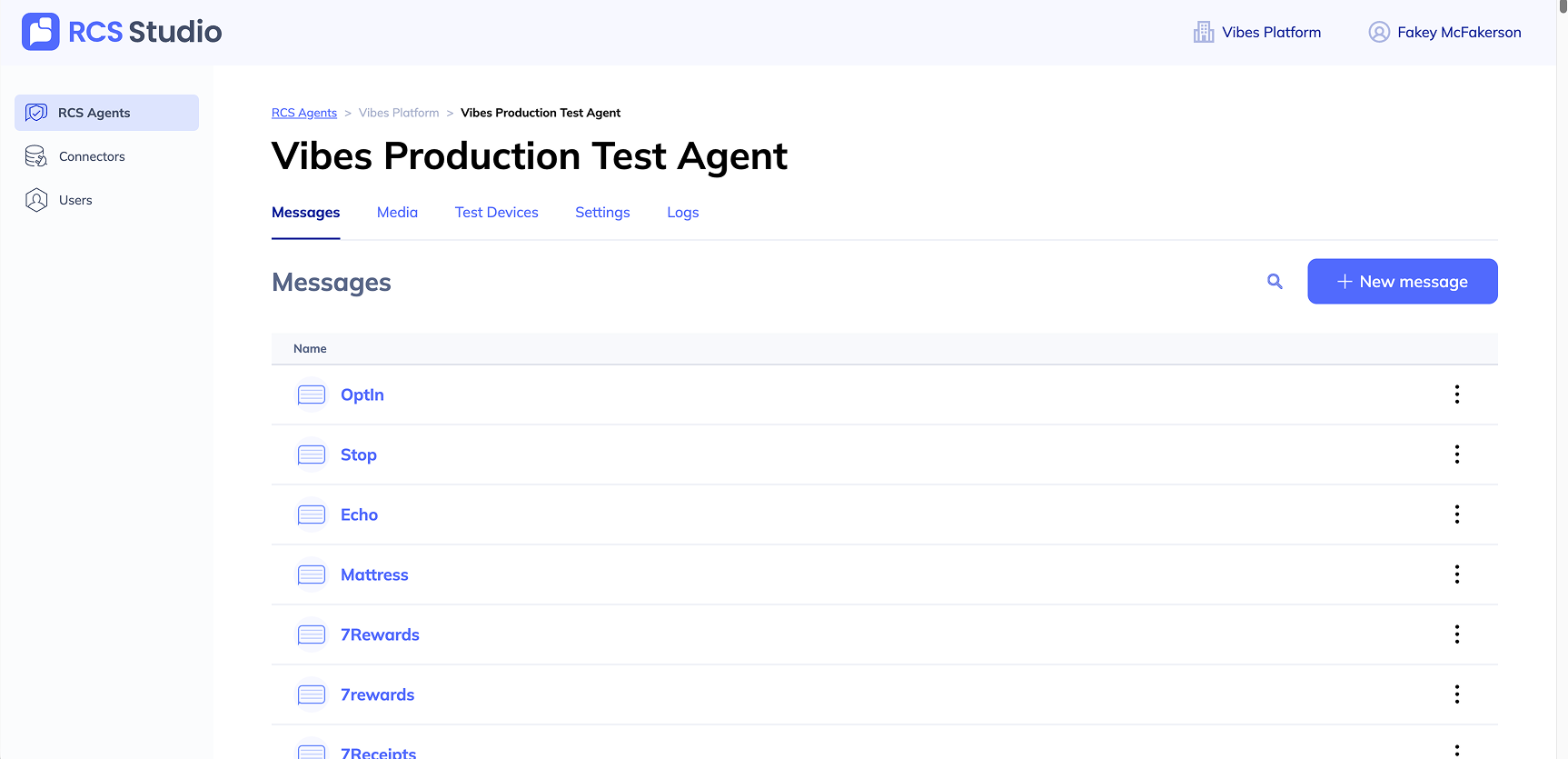
- Messages – View the RCS messages you’ve built for the selected agent.
- Media – View and upload media assets to be used in RCS messages.
- Test Devices – Add devices so that they can receive test RCS messages from your agents.
- Settings – Update your agent’s branding, interaction details, and compliance settings.
- Logs – View your agent's activity.
Select a tab to learn more
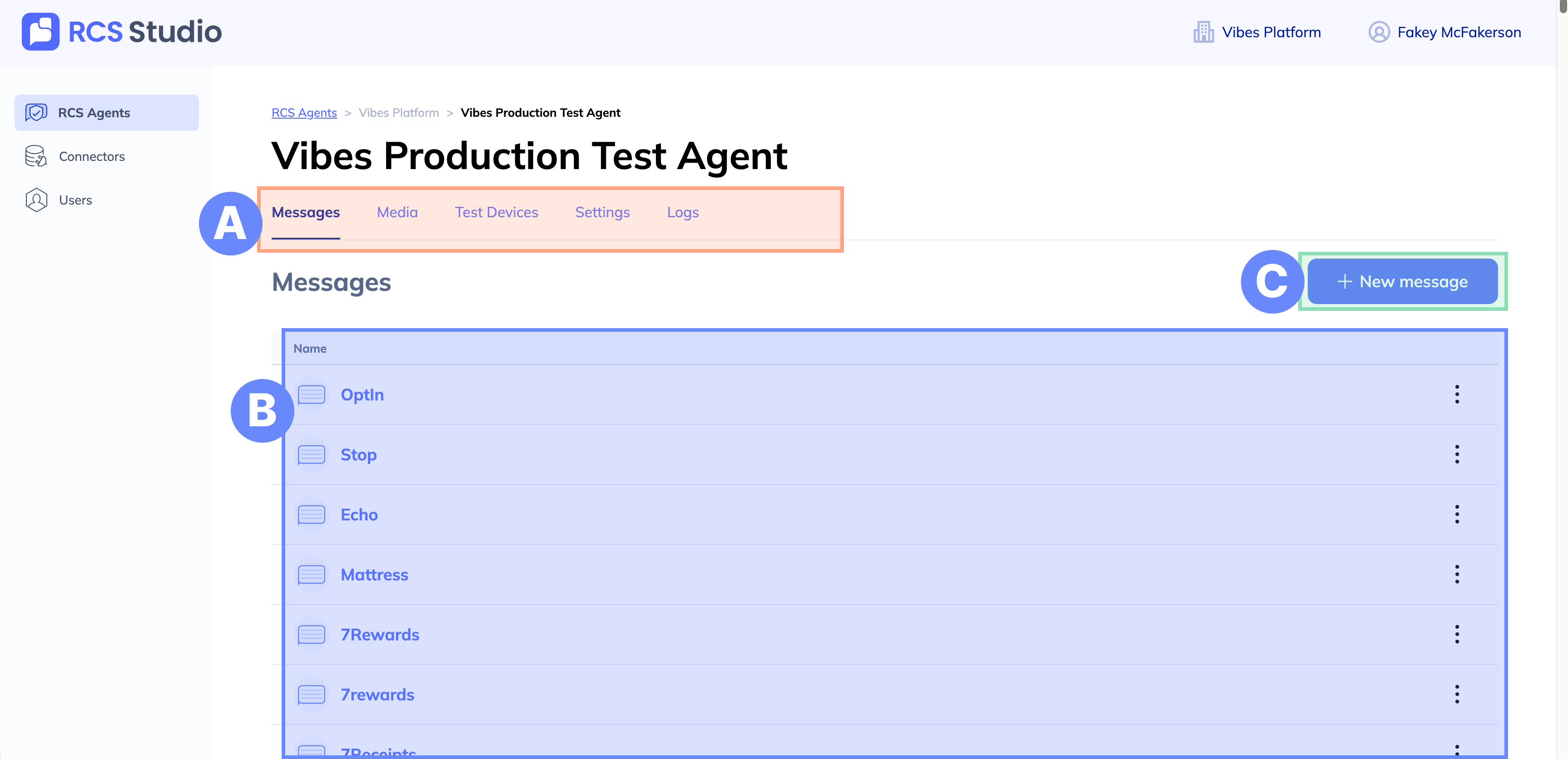
A. Tabs – Use the tabs to toggle between views.
B. Messages – When you first enter the agent view, you’ll be taken to the Messages tab, where you'll see a list of all the RCS messages you’ve built for this agent.
C. + New – To build a new RCS message, select the + New message button while on the Flows & views tab. This will take you to the RCS builder.
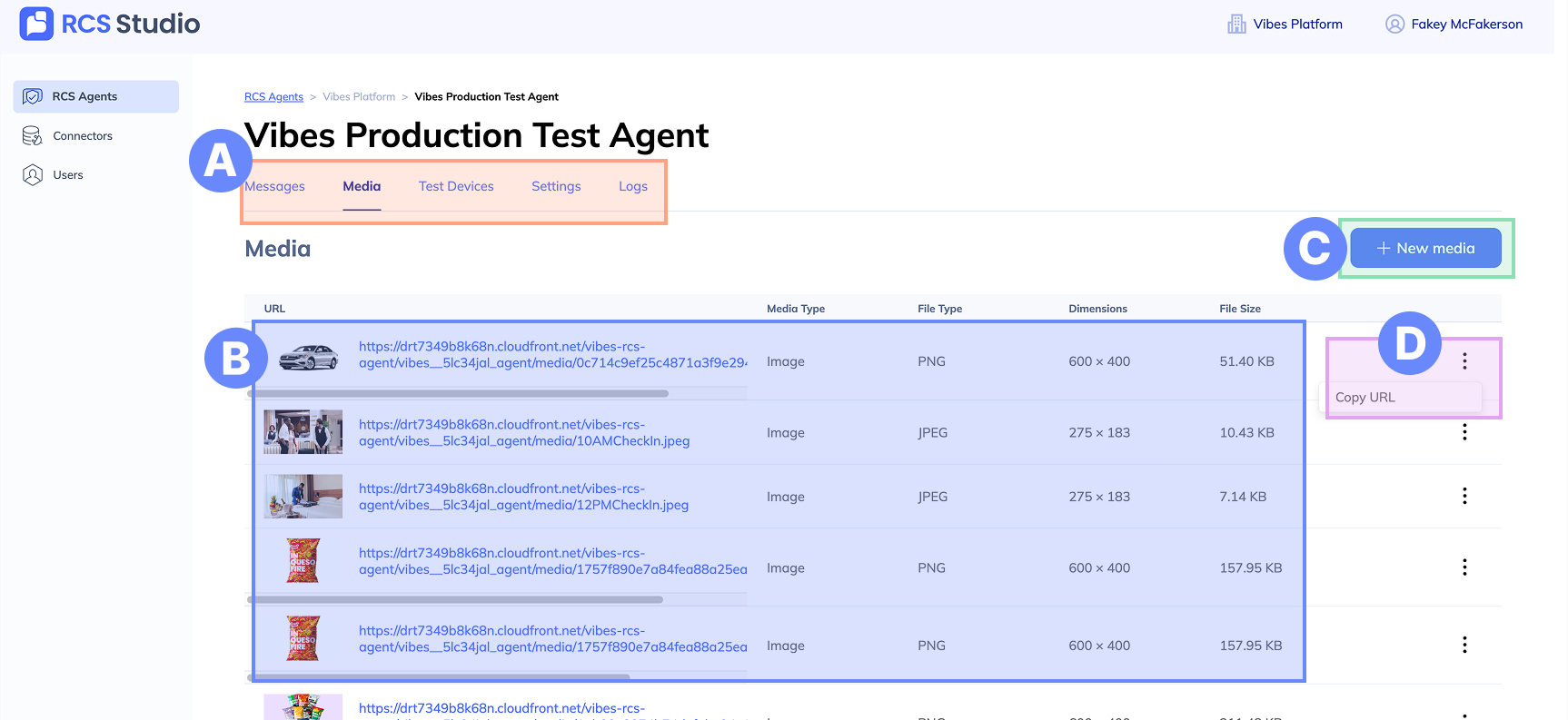
A. Tabs – Use the tabs to toggle between views.
B. Media – View a list of all the media that has been uploaded to your account.
C. + New media – Upload new media to be used in future RCS messages.
D. More options – Select this to copy the URL for your selected media.
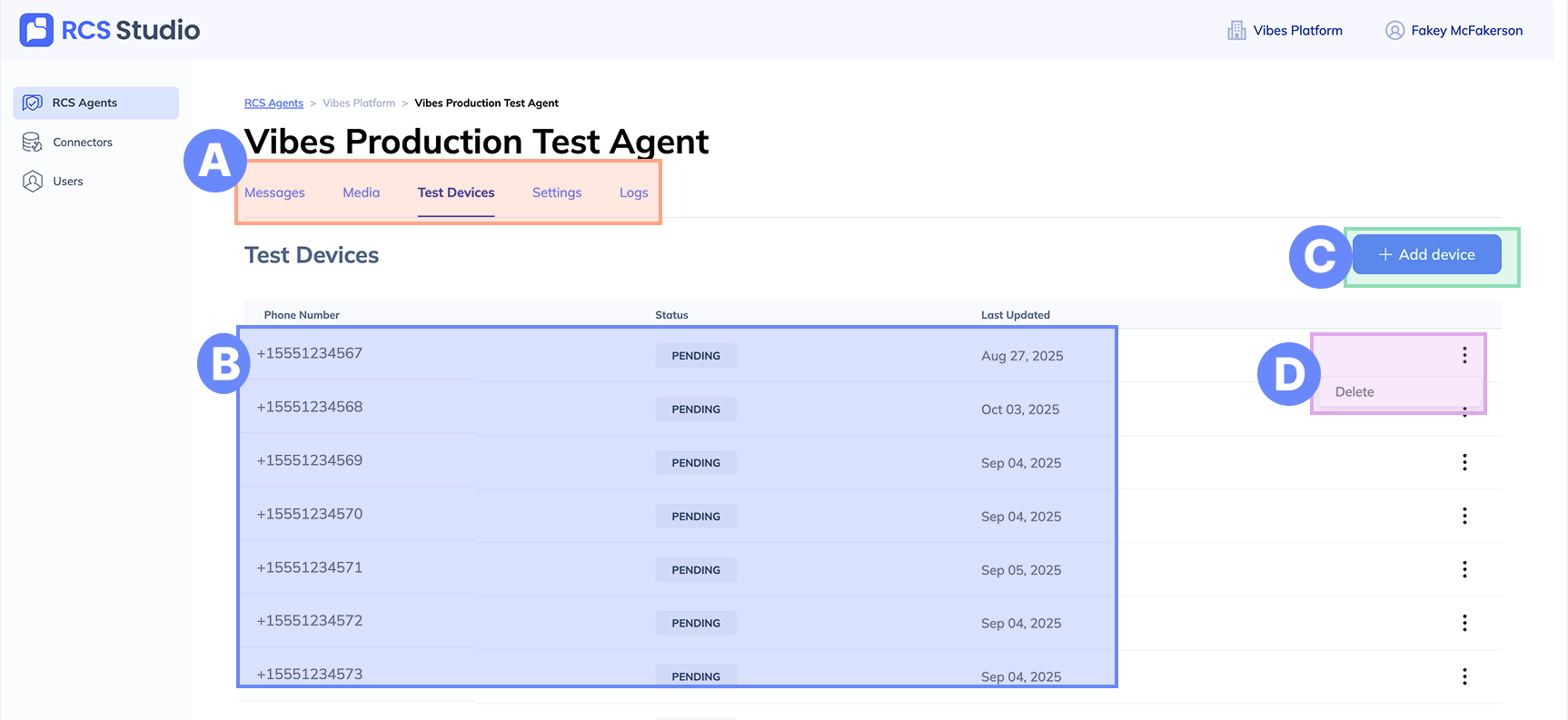
A. Tabs – Use the tabs to toggle between views.
B. Test devices – A list of all the phone numbers that have been invited as testers to this agent.
C. + Add device – Add additional test device(s).
D. More options – To remove a device as a test device, select Delete.
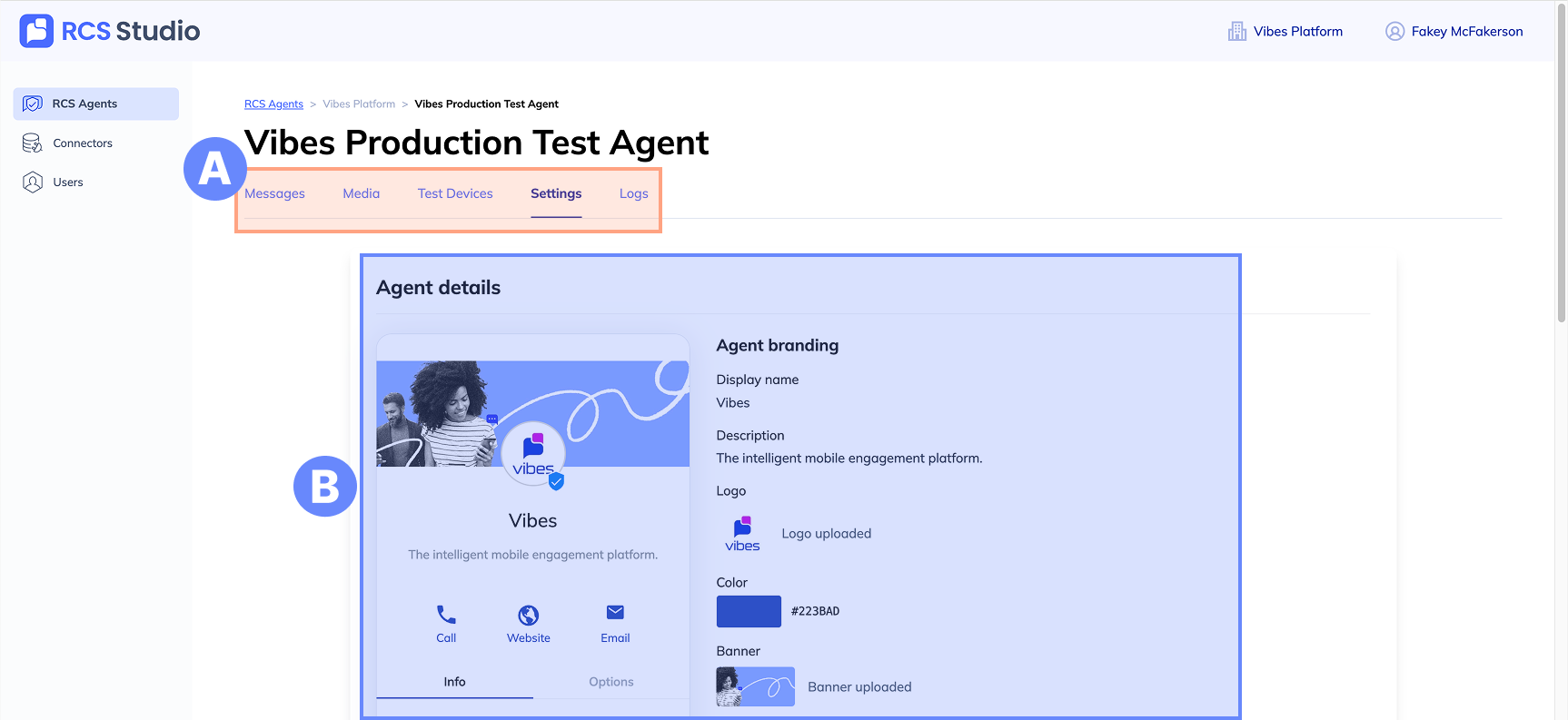
A. Tabs – Use the tabs to toggle between views.
B. Agent details – Customize your agent with logos, brand colors, banners, agent interactions, and more. See customize your agent for more.
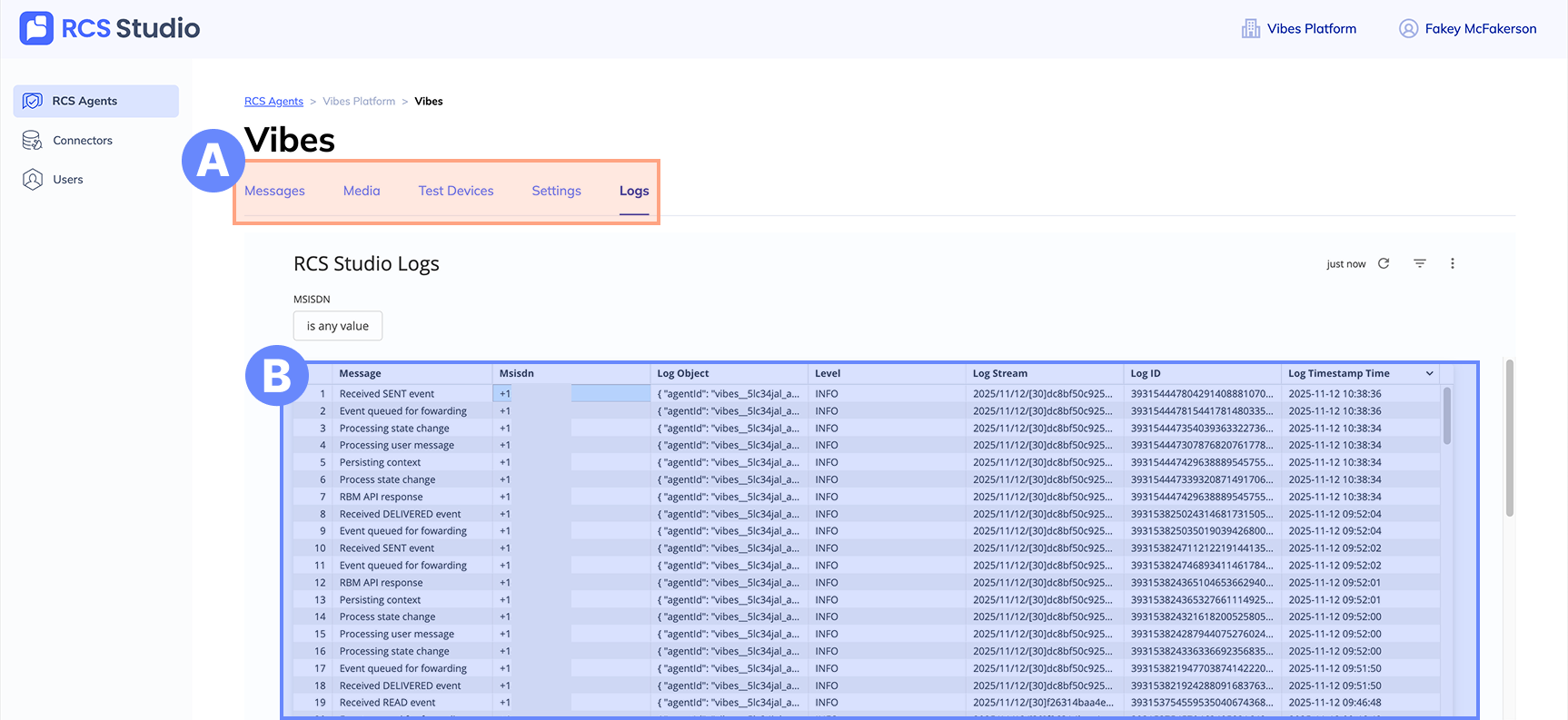
A. Tabs – Use the tabs to toggle between views.
B. Log – A log of all the activity coming to and from this agent.
Updated 11 months ago