
Send a message to a test device
Before your agent is verified, you will only be able to send messages to select test devices.
Once you’ve created a message or series of messages, you may want to test what that message will look like on an actual device. To do this, you’ll need an RCS-capable device with working a phone number.
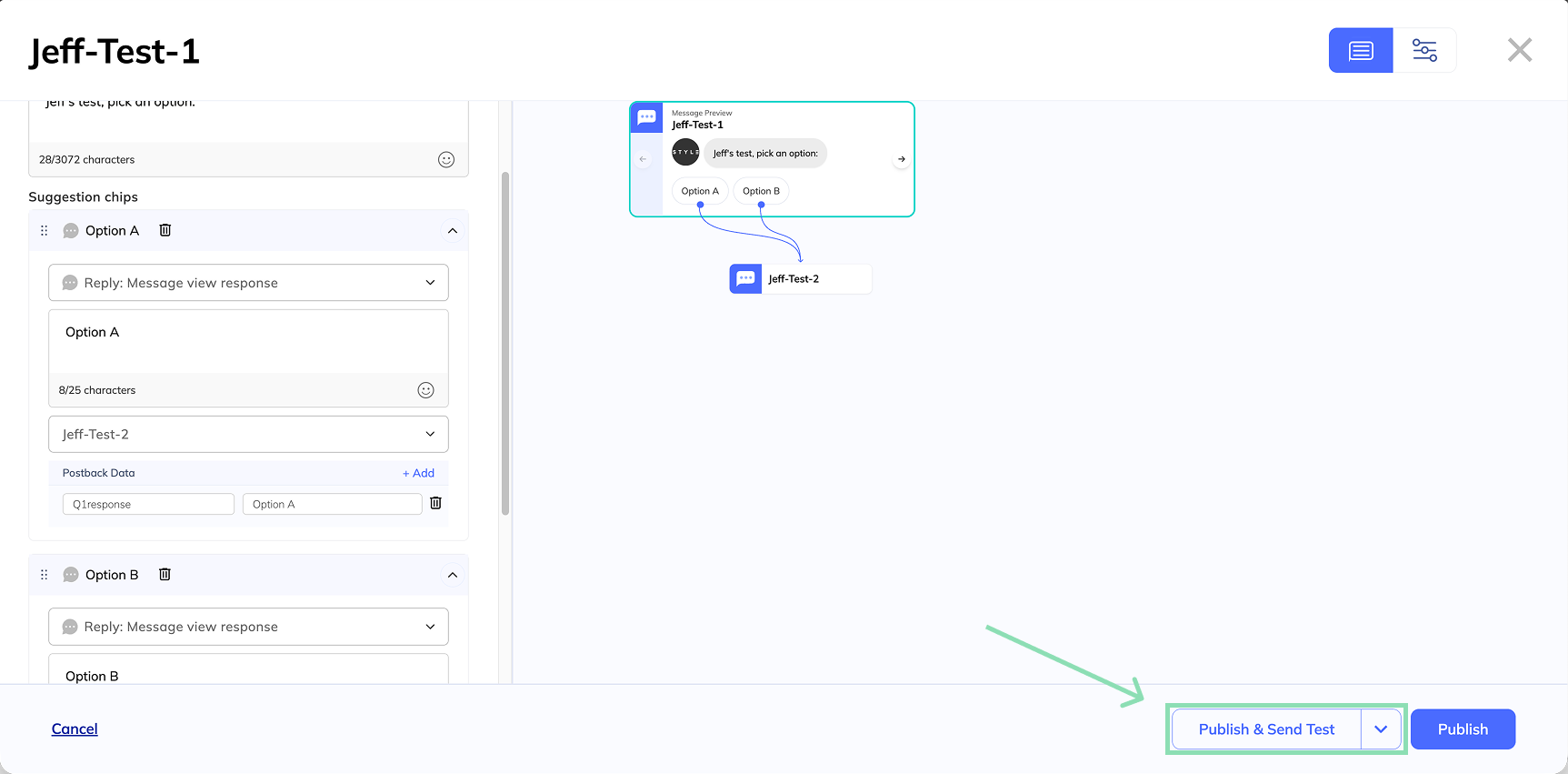
To send a test message, navigate to the message you'd like to test. There, you'll see the Publish & Send Test button.
Choose where to send the message
Send to yourself
If you would like to send a test message to the phone number you entered when you created your account, simply press Publish & Send Test. This will save any unsaved changes and send a test message to your phone number.
Send to existing test device(s)
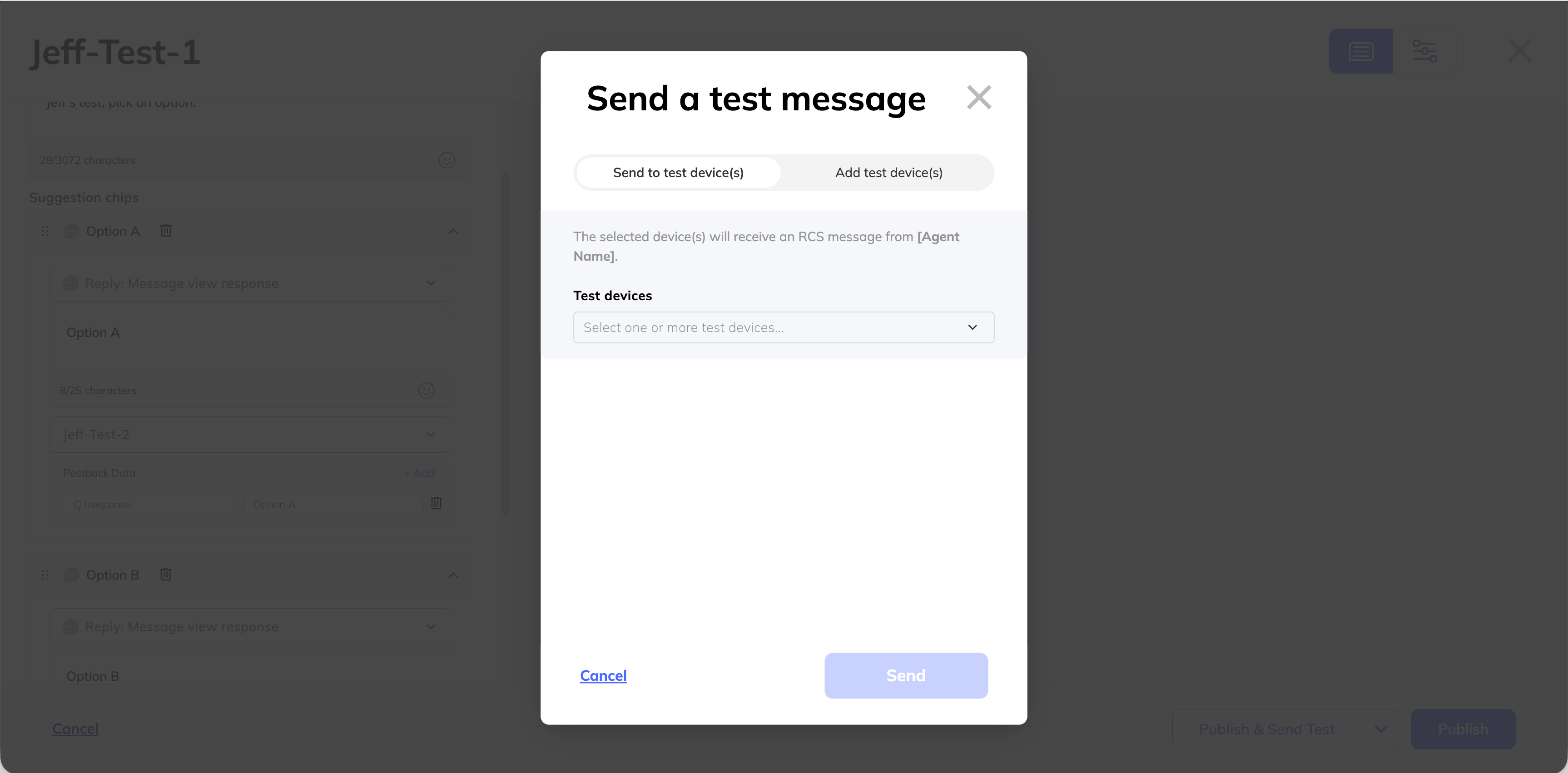
If you have already added test devices to this agent and would like to send a test message to one or more of those test devices, select the arrow next to Publish & Send Test and select the option Send to test device(s). You will then have the option to select test devices and send a message to each device.
Send to new test device(s)
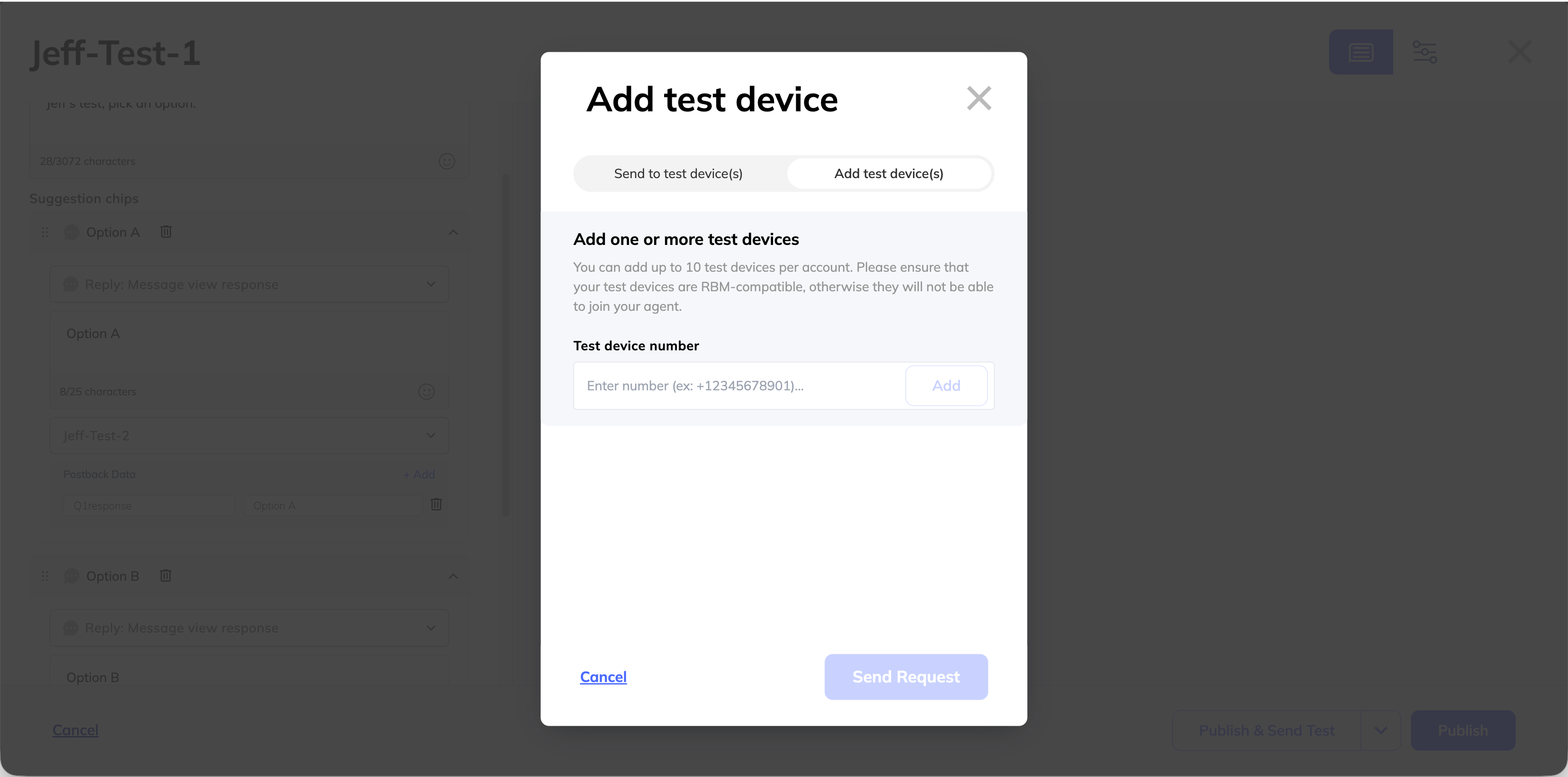
If you would like to send a test message to a device you have not yet added as a test device to this agent, you have the option to add more test devices without leaving the RCS builder. select the arrow next to Publish & Send Test and select the option Add test device(s). Doing this will send a request to each phone number from the RBM Tester Management.
Updated 11 months ago