
Launch and manage your agents
An agent in Test Mode can message only test devices. To message real contacts you submit a launch request, which starts a review by carriers and partners. Launching needs a paid plan, so you pay for a plan first and then submit the request in RCS Studio.
Access
- A HubSpot super admin chooses and pays for the plan on the Plan page. Nobody else can. Others see "Billing is managed by a HubSpot super admin."
- You need your own RCS Studio account to submit the launch request. An RCS Studio admin invites you from the Team page (Manage your team in HubSpot).
- The launch tile needs the Edit brand and agent settings switch, which is on by default. Without it you do not see the tile.
Launch your agent
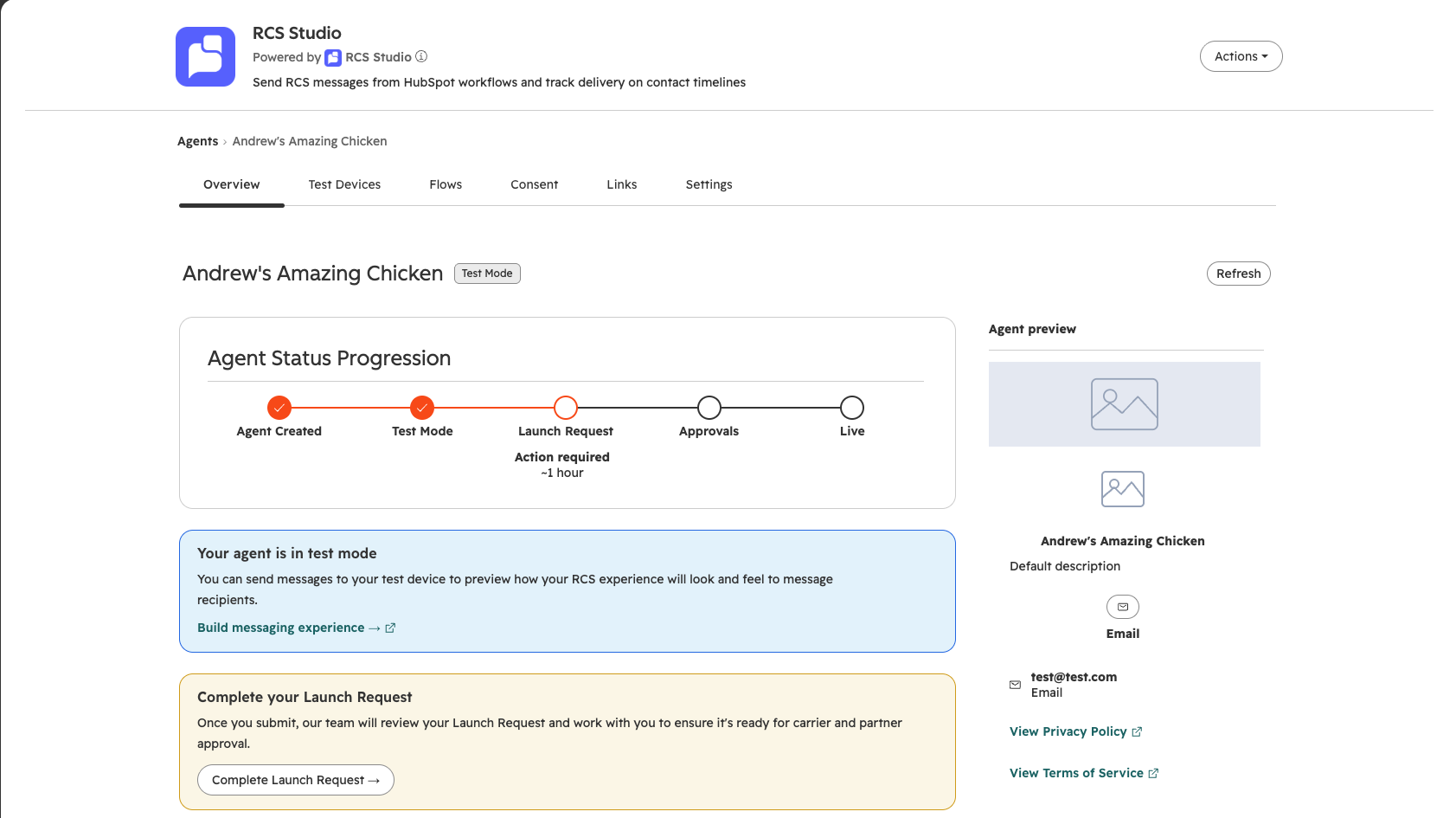
A launch tile appears on the agent's Overview tab while the agent is in Test Mode (and Updating after a save). If the tile is not there, see Troubleshooting. Before you submit, check that the setup guide shows a healthy agent, that the agent's details on the Settings tab are filled in, that your message flows are built and that you have tested the consent flows on test devices (Create and set up your agent). The details lock once you submit.
What the tile says tells you where you are starting. Find your case below.
You are on the Free plan
This is the common case for a new account. It also covers a paid account whose subscription has lapsed. The tile reads "Ready to launch?" and says "Launching your RCS agent is a premium feature. Choose a plan to go live."
- Select View plans to open the Plan page. If you are not a HubSpot super admin, ask one to do steps 2 and 3. They see "Billing is managed by a HubSpot super admin."
- Compare the plans (see Plans) and select Get started on one. This opens Stripe checkout.
- Pay. Return to the agent's Overview tab. The tile now reads "Complete your Launch Request". Continue with You are on a paid plan.
You are on a paid plan
The tile reads "Complete your Launch Request": "Once you submit, our team will review your Launch Request and work with you to ensure it's ready for carrier and partner approval."
- Select Complete Launch Request →. RCS Studio opens in a new tab on the agent's launch page.
- Submit the request in RCS Studio. Its page lists what to prepare, including compliance details, an opt-in image, carrier testing and the verification emails your brand contact must answer. See Launch your Studio agent.
Then see After you submit.
You have no RCS Studio account yet
The tile says "An RCS Studio account is required to submit this agent for carrier verification. Ask an RCS Studio admin to invite you to RCS Studio." Ask an admin to invite you from the Team page. If you were invited but have not signed up, the tile says "You’ve been invited to RCS Studio. Check your email for a temporary password to complete setup." Follow the email, then return to the tile.
Plans
Open the Plan page. It shows "Choose your plan" with a tag for your current plan. The Plan page is the source of truth for plans and prices. This is what it listed at the time of writing.
| Plan | Price | Includes |
|---|---|---|
| Free | $0 | Limited contacts, 1 RCS agent, custom API connectors, test messaging |
| Starter | $149 per month | Up to 1,000 MAU* per month, up to 15,000 messages, unlimited RCS agents, auto upgrade to Growth when limits are exceeded, carrier costs absorbed by Vibes, verified brand sender, rich cards and carousels |
| Growth (tagged "Best value" unless it is your current plan) | $499 per month | Up to 5,000 MAU* per month, 50,000 messages included, unlimited RCS agents, carrier costs absorbed by Vibes, verified brand sender, rich cards and carousels |
| Enterprise | Custom | Unlimited MAU limits, unlimited RCS agents, a dedicated success manager, custom integrations and SLAs |
* MAU (Monthly Active User) is a unique contact that receives at least one RCS message in a billing month.
Starter and Growth also charge $100 to verify your business and $500 to provision your agent on all carriers ($500 per agent provisioned on Growth). Your current plan is marked Current plan and plans below it are hidden.
RCS Studio owns the plan limits, such as how many agents, brands and test devices you may have. The app lets you try an action and shows RCS Studio's reason when it refuses. If RCS Studio gives no usable reason the app shows "Your plan doesn't allow this action. See Settings → Plan." Look for the Plan page.
| Control | Who can use it |
|---|---|
| Get started (opens Stripe checkout) | A HubSpot super admin. Others see "Billing is managed by a HubSpot super admin." and a disabled button. |
| Manage billing (payment method, invoices, subscription), shown once a subscription is active | A HubSpot super admin |
| Contact sales (Enterprise) | Anyone |
After you submit
While the review is under way the agent's details are locked: "Agent details can no longer be edited once a launch request has been submitted." The agent moves through these steps on its Overview tab. The times are estimates the app shows, not guarantees. Agent status lifecycle explains the statuses.
| Status tag | Stepper | Typical time |
|---|---|---|
| Under Review | Approvals | About 3 weeks. "Your agent has been submitted to carriers and partners for approval." |
| Verified | Live, "Launching on carriers…" | About 1 week. "Your agent is approved!" |
| Partially Live | Live, "Launching on carriers…" | About 1 week. Live on some carriers, launching on others. |
| Live | Live | "This agent has been launched and is available to real users." |
The Carrier Status tile lists each carrier as Not launched, In progress, Live or Failed. Once the agent is live, opted-in contacts can be messaged without being test devices.
Troubleshooting
| Symptom | Cause | Fix |
|---|---|---|
| No launch tile on the Overview tab | The agent is not in Test Mode, or you lack permission to edit brands and agents. | Check the status tag. Check your permissions. |
| Get started is greyed out | You are not a HubSpot super admin, or the billing links did not load. | Ask a super admin, or retry when the tab offers it. "Couldn't prepare the billing links." means the links failed to load. |
| The details cannot be edited | A launch request was submitted. | Ask your provisioning manager. |
Next
Consent management explains how contacts opt in, which you need before you message real contacts.
Updated 9 days ago