
What is a brand and agent?
A brand represents your company and an agent is the sender of your RCS messages. A brand can have multiple agents — for example, one for marketing and one for transactional notifications. Both must pass carrier verification before an agent can send messages to real users.
The RCS Agents tab is where you'll find all the brands and agents associated with your account.
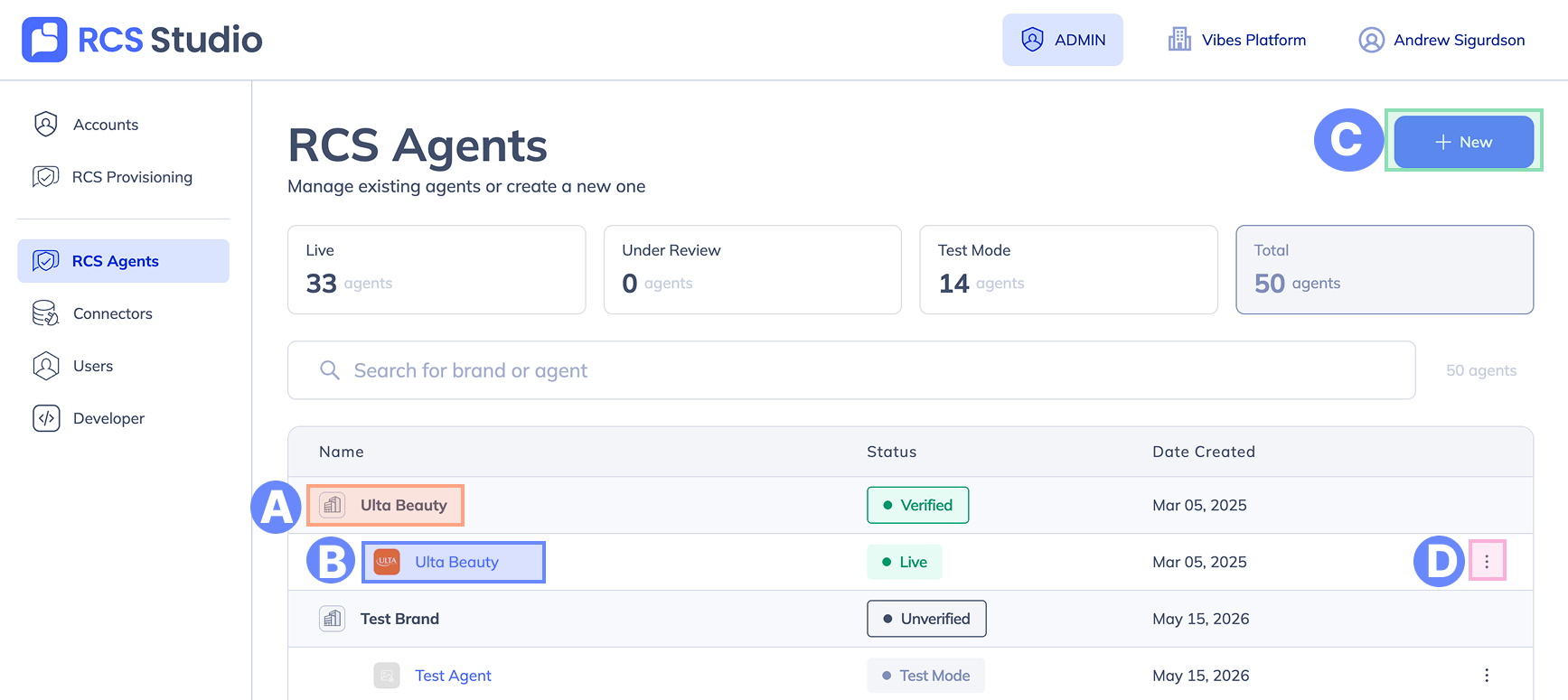
A. Brand — The brand row, showing the brand's current status.
B. Agent — Click an agent to open the agent view. Shows the agent's current status.
C. + New — Create a brand & agent.
D. ⋮ — Access agent settings.
The page also shows a summary of agent statuses at the top (Live, Under Review, Test Mode) and displays the current status for each brand and agent in the list.
On the free tier, you may only create 1 brand with 1 agent.
Brand
A brand is the legal entity that owns your RCS agents. It represents your company or organization and is submitted to carriers as part of the agent verification process.
Every agent in RCS Studio must belong to a brand. A brand can have multiple agents, but each agent belongs to exactly one brand.
Brands have their own status that progresses in parallel with the agent's status. See Agent status lifecycle for a full description of brand and agent statuses.
Agent
An agent is the verified sender of your RCS messages. Each agent is tied to a brand and can only belong to one brand.
Once verified, an agent appears in the user's messaging app as a verified contact — with a display name, contact photo, and contact details. Before verification, the agent can only send messages to a registered list of test devices.
When you click an agent from the RCS Agents tab, you enter the agent view. This is where you build messages, manage settings, test your flows, and track your launch status.
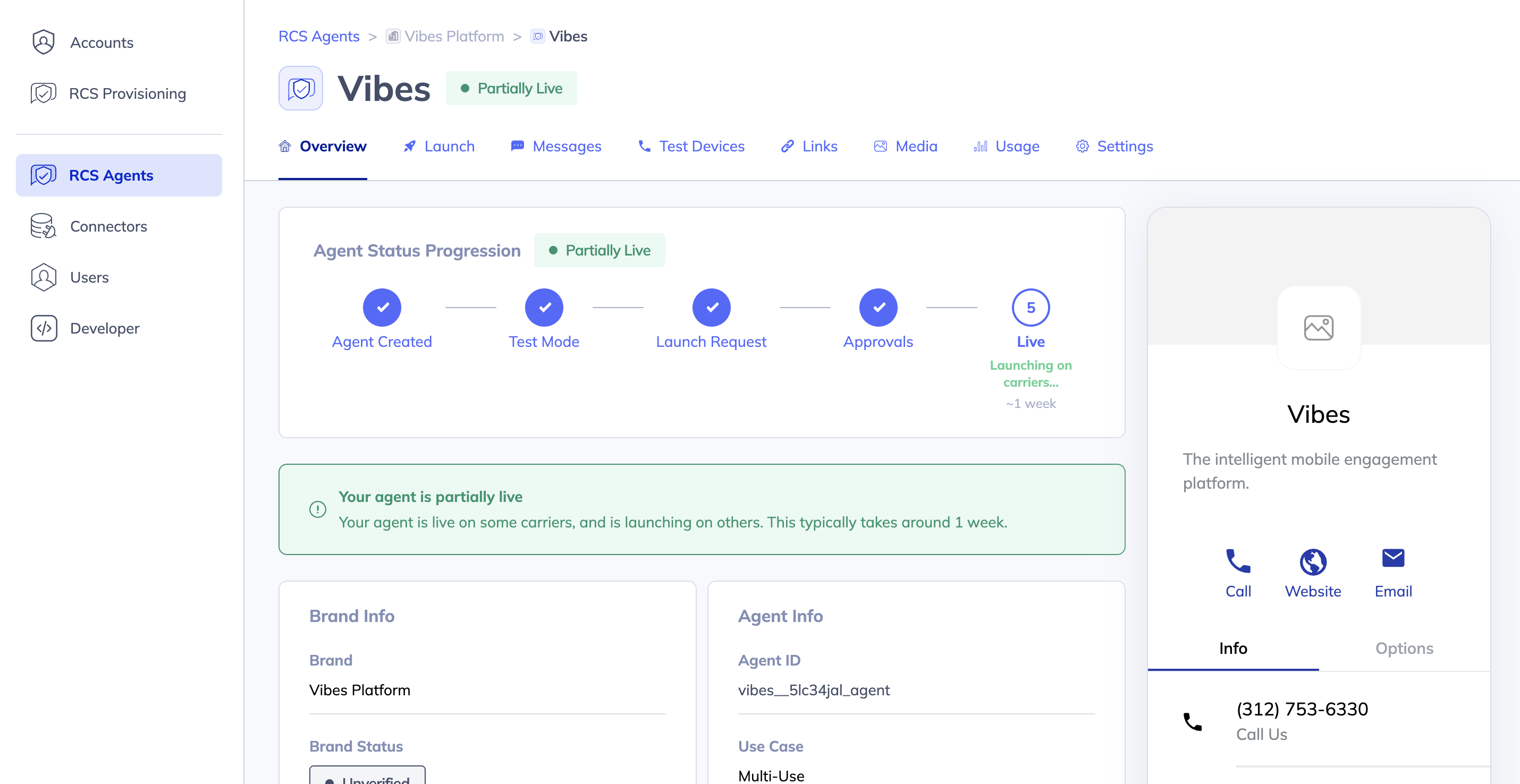
Agent tabs
| Tab | What it does |
|---|---|
| Overview | Shows the current agent status and four-stage launch lifecycle stepper — see Agent status lifecycle |
| Messages | Build, edit, and publish RCS messages for your agent |
| Test Devices | Register phone numbers to receive test messages while in test mode |
| Links | Generate short links and QR codes that trigger entry point messages |
| Launch | Submit and manage your agent's launch request for carrier approval |
| Settings | Configure agent branding, contact info, behaviors, and webhook URL |
Brand and agent relationship
| Brand | Agent | |
|---|---|---|
| Represents | Your legal business entity | A specific messaging sender |
| Display name | Set at creation, cannot be changed | Set at creation, shown to end users |
| Verified by | Carriers as part of launch | Carriers as part of launch |
| Can have multiple? | One per account (free tier) | Multiple per brand |
Both the brand and its agent must pass carrier verification before the agent can go live.
Updated 4 months ago