
Manage your team in HubSpot
This page covers the two things you do to manage who uses RCS Studio in HubSpot: invite colleagues to your RCS Studio account, and choose which features everyone in the portal can use. RCS Studio and HubSpot keep separate lists of people. A HubSpot user can open the app, but to build flows, edit connectors, open RCS Studio from an agent or submit a launch request they also need their own RCS Studio account.
Invite people to RCS Studio
To open the Team page, go to the app's home page (Open and navigate the app shows how), then select the Actions menu in the top right and choose Team.
The page lists everyone in your RCS Studio account, not only people who use the HubSpot app. Anyone who opens the app can see the list. Only an RCS Studio admin gets an Invite user button: your HubSpot email must be the email of an RCS Studio account with the Admin role that has finished sign-up. Being a HubSpot super admin does not replace this, and no feature switch changes it.
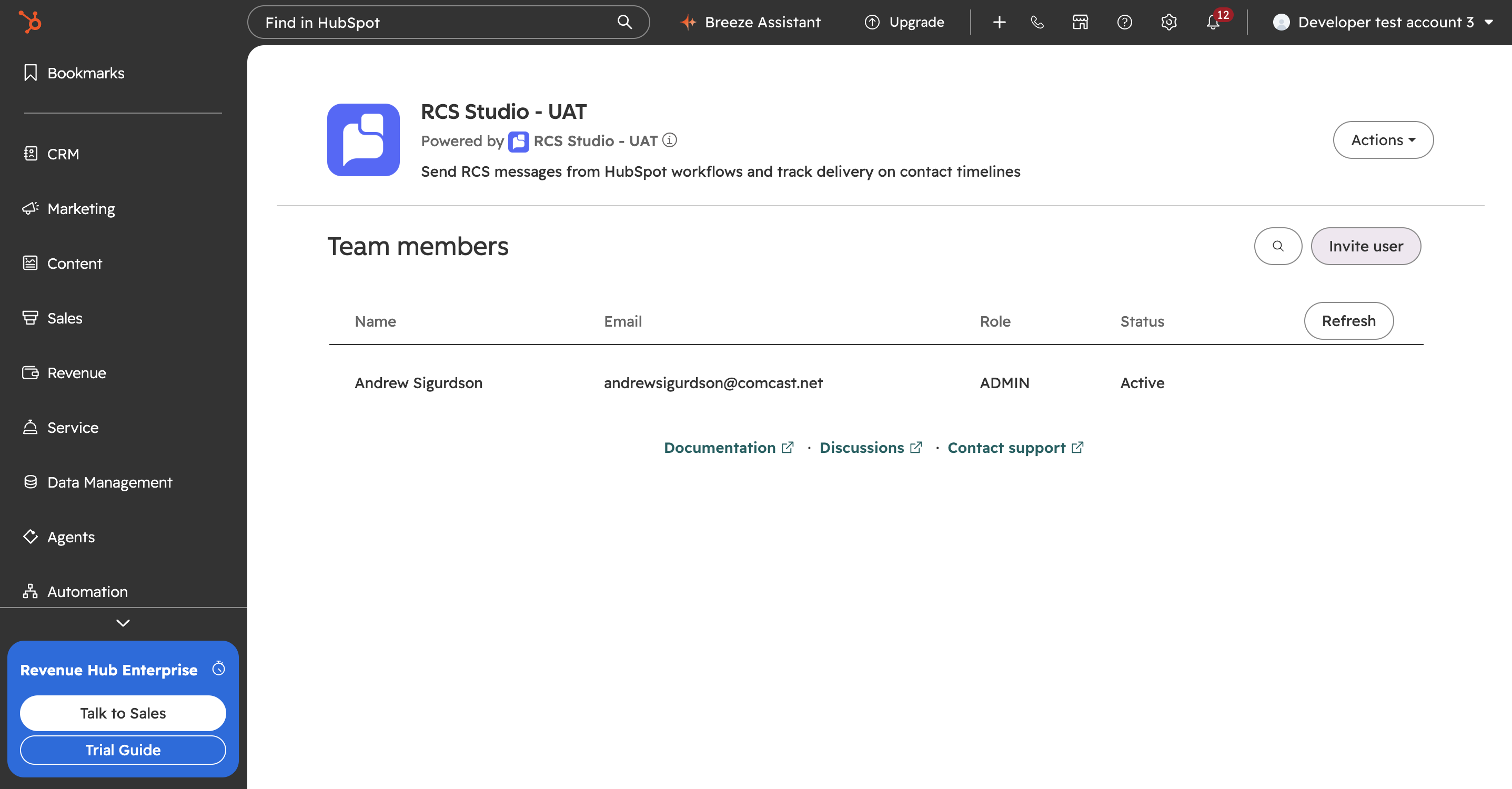
The list shows:
| Column | Shows |
|---|---|
| Name | First and last name |
| The sign-in email | |
| Role | USER or ADMIN |
| Status | Invited (has not completed sign-up) or Active |
Use the search box (Search team members…) to filter by name or email, and Refresh to reload the list. If nothing matches, the tab says No team members match "<your search>". If the account has no members at all, it says "No team members found."
Invite someone
- On the Team page, select Invite user. The Invite to RCS Studio form opens.
- Fill in Email, First name, Last name and Mobile number. All four are required. The mobile number must be a US number, such as
8475551234or+18475551234; anything else shows "Enter a valid US phone number (e.g. 8475551234 or +18475551234)". - Choose a Role: User (the default) or Admin. The form explains the roles: "Admins can invite and remove people in RCS Studio. What Users can change in the HubSpot app depends on your super admin's feature settings."
- Select Invite.
The person gets an email from RCS Studio with a temporary password. To finish joining your RCS Studio account, they:
- Open app.rcsstudio.ai and sign in with the invited email address and the temporary password.
- Set a permanent password when RCS Studio asks for one.
- Enter the verification code RCS Studio sends them to complete two-factor sign-in.
Once they are in, they are a member of your RCS Studio account with the role you chose. Until they finish, they show as Invited on the Team page. Select Refresh to see the change. The app has no remove or resend option. Do both in RCS Studio.
Choose who can use which features
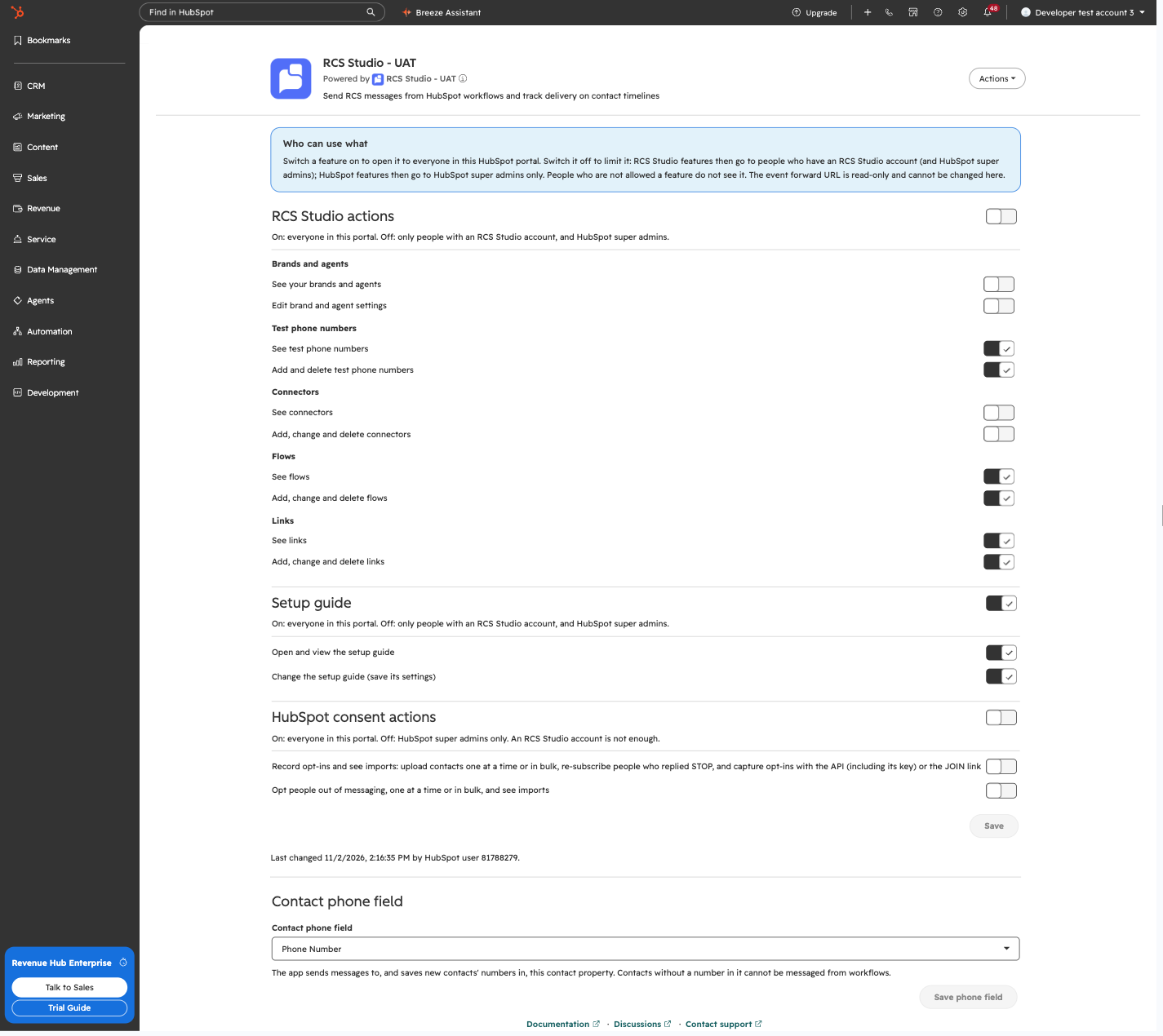
The app's Settings page is where a HubSpot super admin decides which features everyone in the portal can use, and which contact property holds phone numbers. It shows the feature switches in sections, Save and Discard changes buttons, and the Contact phone field control under them.
To open it, go to the app's home page (Open and navigate the app shows how), select the Actions menu in the top right and choose Settings. You can also select Open super admin settings → on the app's settings page in Connected Apps. Only super admins see either.
Access
Only a HubSpot super admin can change these settings. The app checks this again each time you save. Anyone else who reaches the page sees Super admin only: "Only a HubSpot super admin can open these settings."
Feature switches
A HubSpot super admin decides, per feature, whether everyone in the portal can use it or only some people. The switches are grouped into sections: RCS Studio actions (with Brands and agents, Test phone numbers, Connectors, Flows and Links), Setup guide, and HubSpot consent actions.
Each switch is On (open to everyone in the portal) or Off (limited). What Off means depends on the section:
| Section | Off means |
|---|---|
| RCS Studio actions and Setup guide | Only people with an RCS Studio account, and HubSpot super admins |
| HubSpot consent actions | HubSpot super admins only. An RCS Studio account is not enough. |
Each section has a master switch that sets every switch under it. Settings save when you select Save; Discard changes drops your edits. Each switch is On by default except the two consent switches.
| Section | Switch | Default |
|---|---|---|
| Brands and agents | See your brands and agents | On |
| Edit brand and agent settings | On | |
| Test phone numbers | See test phone numbers | On |
| Add and delete test phone numbers | On | |
| Connectors | See connectors | On |
| Add, change and delete connectors | On | |
| Flows | See flows | On |
| Add, change and delete flows | On | |
| Links | See links | On |
| Add, change and delete links | On | |
| Setup guide | Open and view the setup guide | On |
| Change the setup guide (save its settings) | On | |
| HubSpot consent actions | Record opt-ins and see imports: upload contacts one at a time or in bulk, re-subscribe people who replied STOP, and capture opt-ins with the API (including its key) or the JOIN link | Off |
| Opt people out of messaging, one at a time or in bulk, and see imports | Off |
What each switch controls
| Switch | Lets you |
|---|---|
| See your brands and agents | See the Agents page and open an agent |
| Edit brand and agent settings | Use + New, see an agent's Settings tab, and see the launch tile |
| See test phone numbers | See the Test Devices tab |
| Add and delete test phone numbers | Add or remove a test device |
| Open and view the setup guide | Open the setup guide |
| Change the setup guide (save its settings) | Save in the guide and use Fix |
| See flows | See the Flows tab |
| Add, change and delete flows | Add, change and delete flows, and use Edit in RCS Studio |
| See links | See the Links tab |
| Add, change and delete links | Create, change and delete links |
| See connectors | See the Connectors page |
| Add, change and delete connectors | Add, change and delete connectors |
These docs call the two consent switches Record opt-ins and see imports and Opt people out of messaging. They cover the actions that record or withdraw a contact's consent to receive RCS messages, described in Consent management.
Each Edit switch depends on its View switch, so an Edit switch is never more open than its View switch. Turning an Edit switch On also turns its View switch On, and turning a View switch Off turns its Edit switch Off. If a View switch is Off, its Edit switch has no effect, even when it shows On.
Three things have no switch:
- Connecting or disconnecting a HubSpot inbox is always limited to HubSpot super admins. No setting can open it.
- The Team page, the Send RCS Message workflow action and the contact timeline entries have no switch. See Send RCS messages from workflows for the action and its entries.
- The event forward URL is shown for reference and cannot be changed here.
Under the switches the page shows "Last changed
When a feature is closed to someone, it is hidden, not greyed out: a tab or button they may not use does not appear. If the app cannot read the saved settings, every switch is treated as Off until it can, so a read problem never opens a feature.
Below the switches, the same page has a Contact phone field control. The app reads a contact's phone number from one HubSpot property at a time. It is Phone Number (phone) unless a super admin chooses Mobile Phone Number (mobilephone). To change it, choose Phone Number or Mobile Phone Number in the control, then select Save phone field. Discard phone field changes puts back the saved choice. The helper text under the dropdown says: "The app sends messages to, and saves new contacts' numbers in, this contact property. Contacts without a number in it cannot be messaged from workflows."
A change applies to the next request, and the choice survives a reinstall. If someone who is not a super admin tries to save, the app says "Only a HubSpot super admin can change these settings." and changes nothing.
There is no fallback to the other field, so contacts that only have a number in the other one fail until you fill in the chosen field. Nothing is opted in or out when you change the field.
| Where | What happens |
|---|---|
| Sends from a workflow | The app reads the number from this field only. A contact with nothing in it fails the send with "Contact has no Phone Number" or "Contact has no Mobile Phone Number", naming the field in use |
| Contact creation | A new contact created by the app holds the number in this field |
| Inbound replies and opt-outs (no change) | A customer's number is matched against Phone Number and Mobile Phone Number, so a reply or a STOP finds the contact whichever field holds the number |
The agent's Consent tab shows "Using the Phone Number contact property." (or Mobile Phone Number). A super admin also sees Change in Settings, which opens the Settings page. Other people see the line without the link.
How the app decides who you are
The invite and settings rules above depend on which of four kinds of person you are. It compares your email in HubSpot with the emails in your RCS Studio account, checks the rows from top to bottom and uses the first match.
| You are | How the app knows | What you can do |
|---|---|---|
| A HubSpot super admin | HubSpot says so, checked live | Everything the feature switches allow, plus the Settings page, billing, and uninstalling the app. You can also invite people if you are an RCS Studio admin with the same email. |
| An RCS Studio admin | Your HubSpot email matches an enabled RCS Studio account with the Admin role that has finished sign-up | Use RCS Studio features, and invite people from the Team page. |
| An RCS Studio user | Your HubSpot email matches an enabled RCS Studio account with the User role that has finished sign-up | Use RCS Studio features. You cannot invite people. |
| Someone with no RCS Studio account | No RCS Studio account has your HubSpot email | Use whatever the super admin has left open in the app. You cannot open RCS Studio from the app. |
A person who was invited but has not set a password yet does not count as an admin or a user. The same goes for accounts that are disabled, unconfirmed, awaiting a password reset or archived, even though the Team page may still list them as Active.
RCS Studio access in the app only controls what the app shows and links to. It is not a permission per HubSpot user inside RCS Studio itself: anyone with an RCS Studio login can use RCS Studio directly.
Troubleshooting
| Symptom | Cause | Fix |
|---|---|---|
| The Flows tab or the Connectors page says No RCS Studio account, or a link to RCS Studio is replaced by "An RCS Studio account is required to ..." | Your HubSpot email is not in the RCS Studio account | Ask an RCS Studio admin to invite you. |
| Invite user is not shown, and the page says "Your HubSpot email isn't a member of this RCS Studio account yet. Ask an RCS Studio admin to invite you to RCS Studio." | You have no RCS Studio account | Ask an RCS Studio admin to invite you. |
| Invite user is disabled, with an alert titled Only RCS Studio admins can invite people | You are a regular RCS Studio user. The alert lists up to three admins with their emails ("Admins: Name (email), ... and N more.") | Ask one of them, or invite from RCS Studio. |
| Invite user is not shown, with an alert titled Invitation pending: "An invitation has already been sent to | Your own invitation has not been accepted yet | Check your inbox and finish sign-up. |
| Invite user is disabled, with an alert titled We can't confirm who you are: "We couldn't read your HubSpot email, so we can't tell whether you can invite people. Reload the page, or invite them from RCS Studio." | HubSpot did not give the app your email | Reload the page, or invite from RCS Studio. |
| The invite form shows Invitation not sent: "We could not send this invitation. Check the address, or add the user in RCS Studio." | The address may already belong to an RCS Studio login. The app does not say which, so that it does not reveal who has an account. | Add the person in RCS Studio instead. |
| The invite form shows Something went wrong: "Try again in a moment." | The invitation failed for another reason | Try again. |
| Access check failed with Retry access check | The app could not read the RCS Studio member list | Select Retry access check. |
| A colleague cannot see Flows, Connectors or Agents | The matching View switch is Off and they have no RCS Studio account | Turn it On, or invite them from the Team page. |
| A page shows Managed by your HubSpot super admin: "There is nothing here for your account. A HubSpot super admin controls which parts of RCS Studio are available in this portal." | Nothing on the page is open to that person | A super admin can turn on the switches they need. |
| An action shows "Your HubSpot super admin has restricted this feature. Reload the page." | A super admin closed the feature while the page was open | Reload the page. |
| An action shows "Only an admin of your RCS Studio account can do this." or "Only a HubSpot super admin can do this." | The action needs that role | Ask someone with the role. |
| Could not load the settings. Try again. | The settings could not be read | Select Retry. |
| Could not save. Nothing was changed. | The save failed | Select Save again. |
Next
Updated 9 days ago