
Open and navigate the app
This page shows how to open RCS Studio in HubSpot, from the Marketplace menu or from Connected Apps, and find your way around it: the app settings page, the app's tabs, the tabs inside an agent and the support links.
Open the app
There are two ways in. Both end at the same app.
From the Marketplace menu
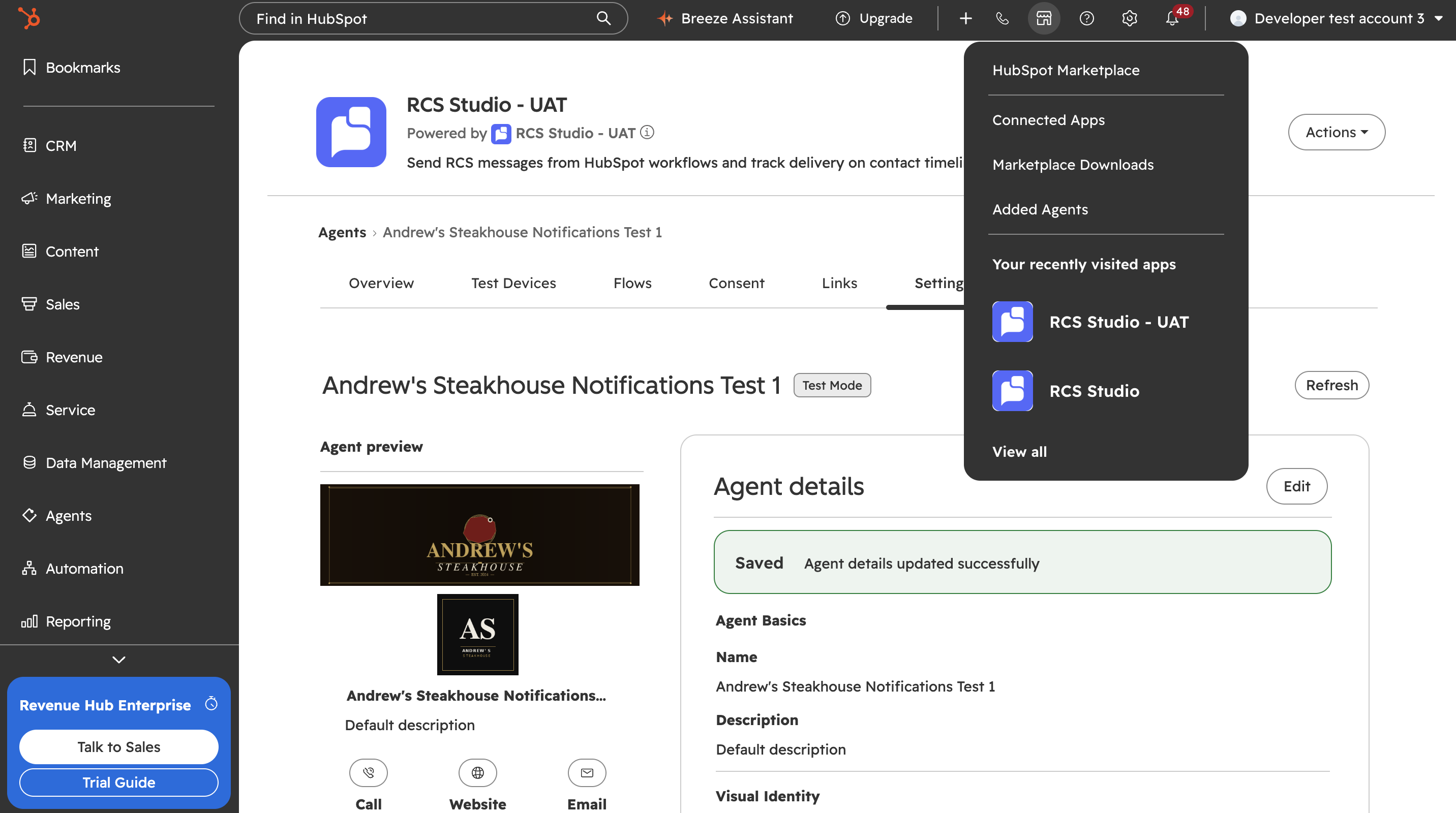
After you install, select the Marketplace icon in HubSpot's top navigation bar. RCS Studio appears under Your recently visited apps. Select it to open the app's pages. The same menu has a Connected Apps link for the second route.
From Connected Apps
-
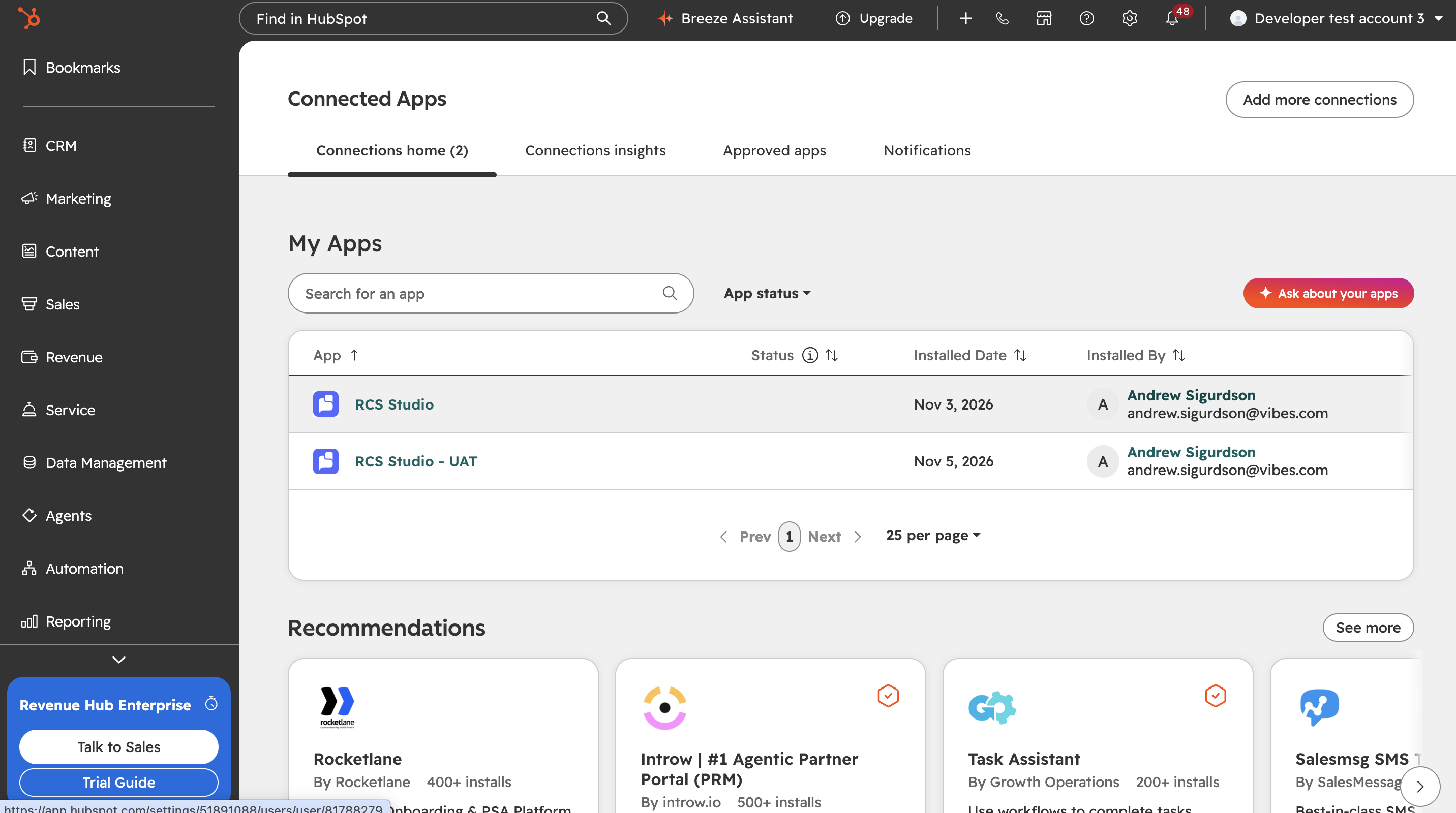
In HubSpot, select the Settings gear icon in the top navigation bar and go to Integrations > Connected Apps. You can also choose Connected Apps in the Marketplace menu.
-
On Connections home, find RCS Studio under My Apps and select it. The table shows when the app was installed and who installed it.
-
The app's page has three HubSpot tabs: Overview, Insights and Settings. Select Settings. Its General section is the app's settings page. The App cards section next to it holds the RCS Consent card, which Consent management explains.
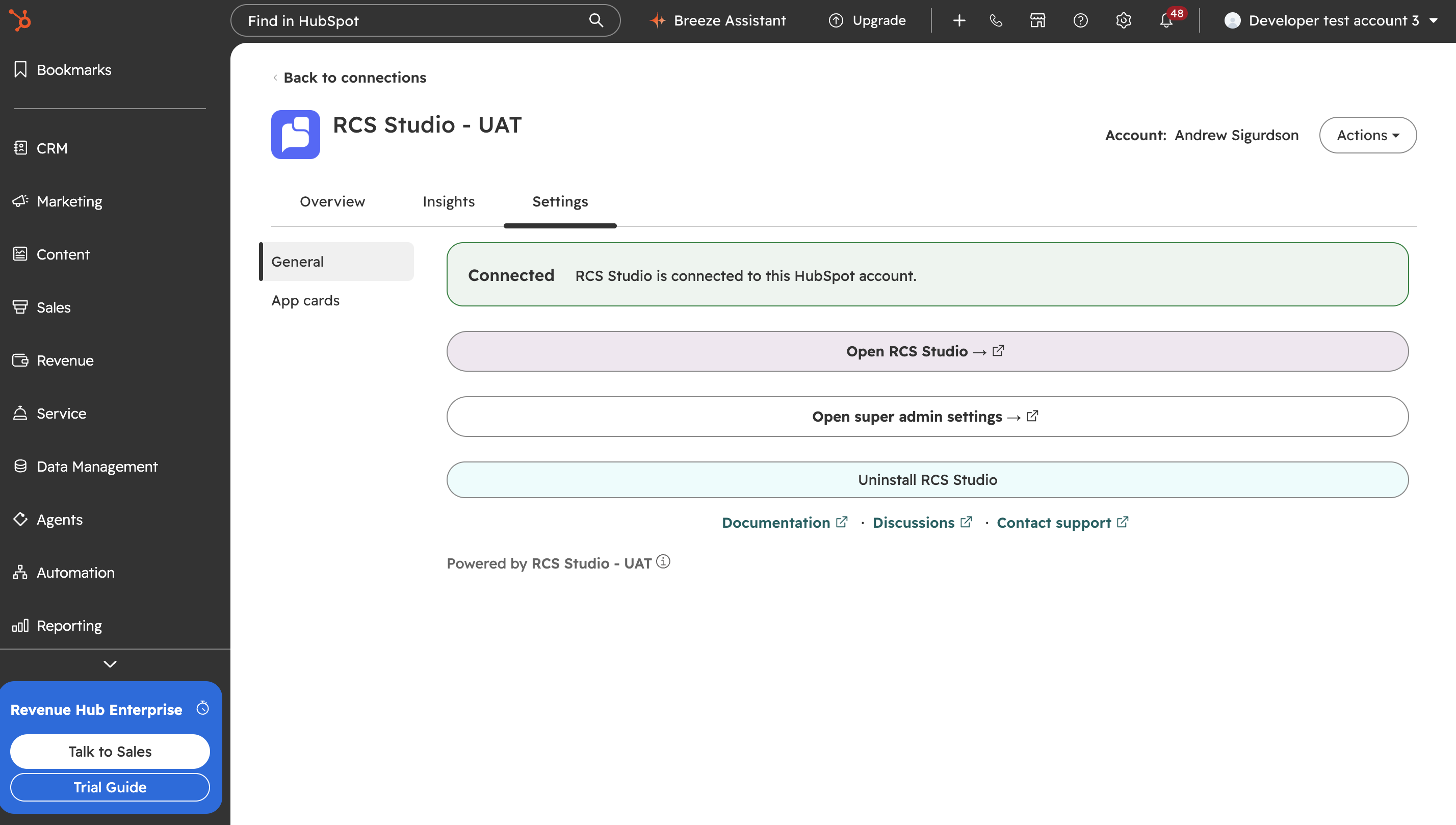
While the connection works, the General section says Connected and offers:
| Button | Who sees it | What it does |
|---|---|---|
| Open RCS Studio → | Everyone | Opens the app on the Agents page |
| Open super admin settings → | HubSpot super admins | Opens the app's Settings page |
| Uninstall RCS Studio | Everyone sees it; only a super admin can finish | Starts an uninstall |
Under the buttons are the Documentation, Discussions and Contact support links, described under Help and support.
Occasionally the page cannot work out the link to the app's pages. It then shows no Open RCS Studio → or Open super admin settings → button and says "Open RCS Studio from the Marketplace icon in the top navigation bar." Use the Marketplace menu route above.
When the connection is not working, the page shows Not connected, Connection lost, Disconnecting RCS Studio or HubSpot connection revoked instead. Each has the button that fixes it, except Disconnecting RCS Studio, which has no button while the uninstall finishes. Install RCS Studio for HubSpot explains each state.
The app's pages
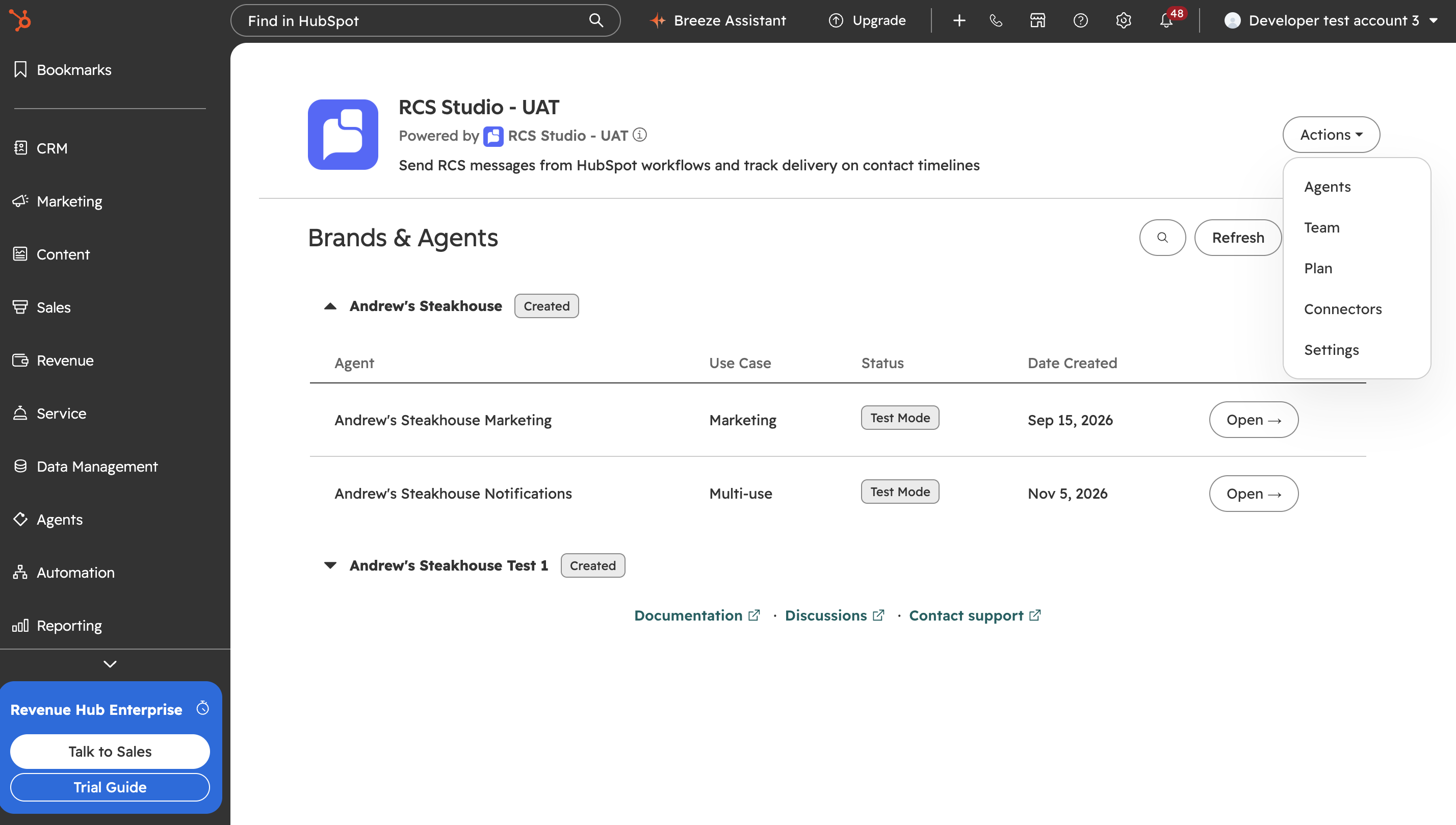
The app opens on the Agents page. To go to any other page, select the Actions menu in the top right of the page and choose one. A page you may not use is not listed, and the feature switches decide which pages each person sees (Manage your team in HubSpot lists them). You do not need an RCS Studio account to open the app or move between pages.
| Page | What it is for | Who sees it |
|---|---|---|
| Agents | Your agents, their setup and launch. See Create and set up your agent | Anyone allowed to see brands and agents |
| Team | Who has an RCS Studio account, and inviting people. See Manage your team in HubSpot | Everyone |
| Plan | Your plan and billing. See Launch and manage your agents | Everyone |
| Connectors | Connectors to your own systems. See Flows, links and connectors | Anyone allowed to see connectors |
| Settings | Which features everyone in the portal can use, and the contact phone field. See Manage your team in HubSpot | HubSpot super admins only |
Inside an agent
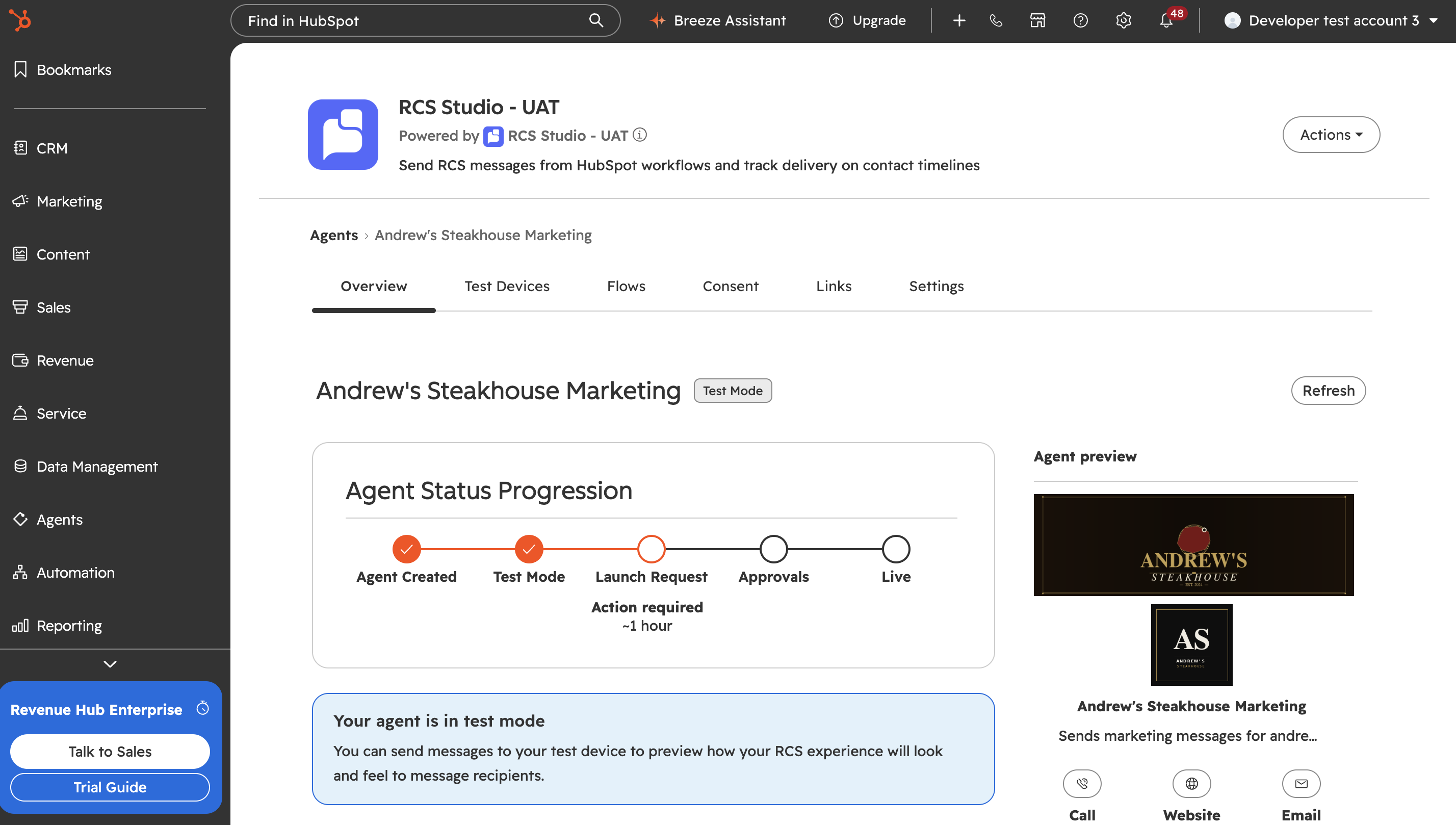
Select an agent on the Agents tab to open it. Its own tabs run across the top.
| Tab | What it is for | Who sees it |
|---|---|---|
| Overview | The agent's status, the setup tiles and the launch tile. See Create and set up your agent | Anyone allowed to see brands and agents |
| Test Devices | Phones that can receive messages while the agent is in Test Mode. See Create and set up your agent | Anyone allowed to see test phone numbers |
| Flows | The agent's flows. See Flows, links and connectors | Anyone allowed to see flows |
| Consent | Consent for this agent: recording existing consent, the API, the JOIN link. See Consent management | People who may use at least one consent switch |
| Links | Short links and QR codes. See Flows, links and connectors | Anyone allowed to see links |
| Settings | The agent's details and brand settings. See Create and set up your agent | Anyone allowed to edit brand and agent settings |
The agent's Settings tab is not the same as the app's Settings tab. The agent's tab holds that agent's details. The app's tab, for super admins, holds the feature switches.
Help and support
A footer on every page of the app, and on the settings page, has three links:
| Link | Goes to |
|---|---|
| Documentation | docs.rcsstudio.ai |
| Discussions | docs.rcsstudio.ai/discuss |
| Contact support | A Contact support window with the support address, [email protected], a Copy email button and an Open mail app button |
Next
Updated 9 days ago