
Create a brand & agent
To get started in RCS Studio, you need at least one brand and one agent
Click + New from the RCS Agents tab to open the creation wizard.
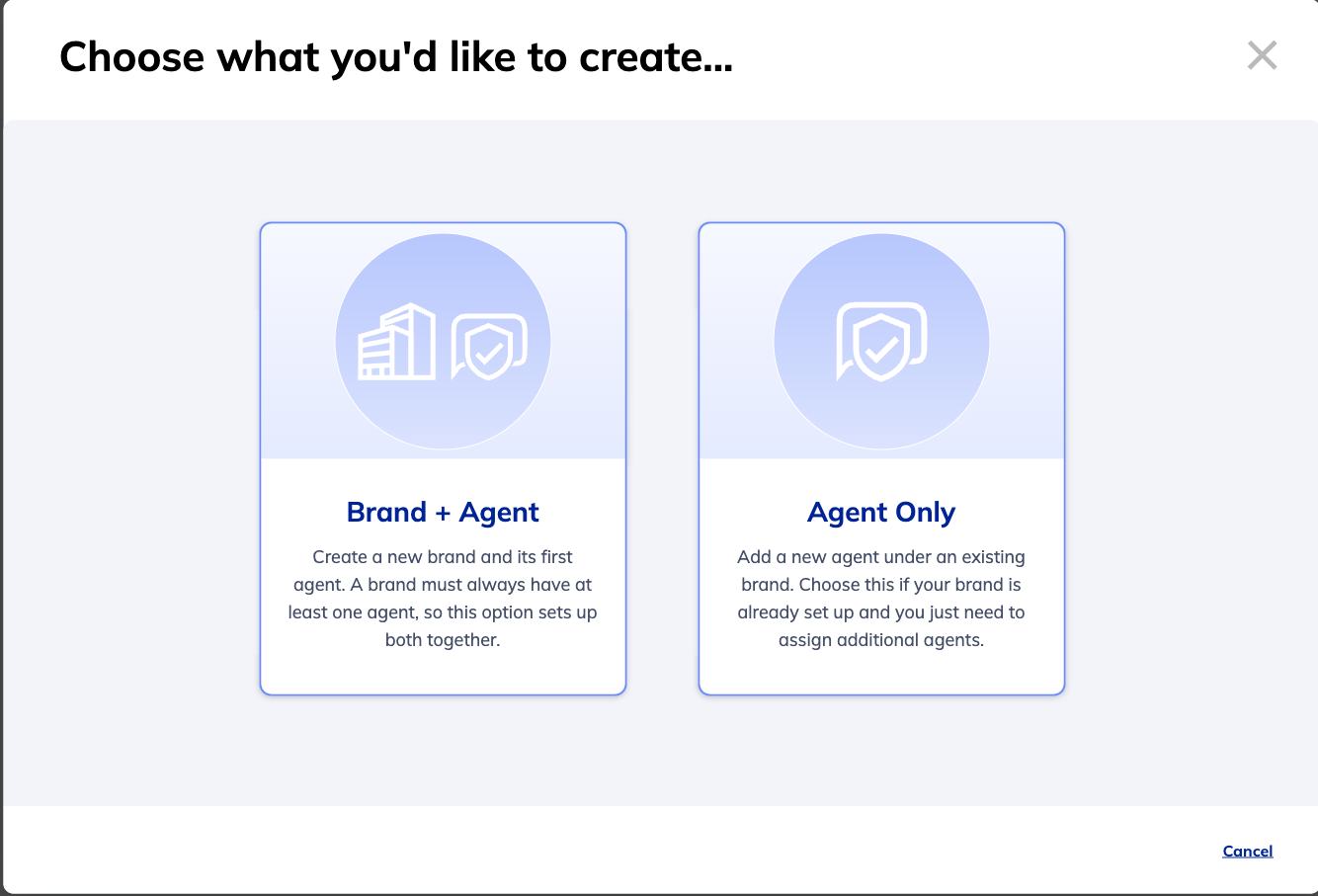
You'll be asked to choose between two options:
| Option | When to use |
|---|---|
| Brand + Agent | You're setting up for the first time, or adding a new brand. Every brand requires at least one agent, so this creates both together. |
| Agent Only | Your brand already exists in RCS Studio and you want to add another agent under it — for example, a separate agent for a different use case or product line. |
Create a brand and agent
Choose Brand + Agent if this is your first time or you're representing a new business entity.
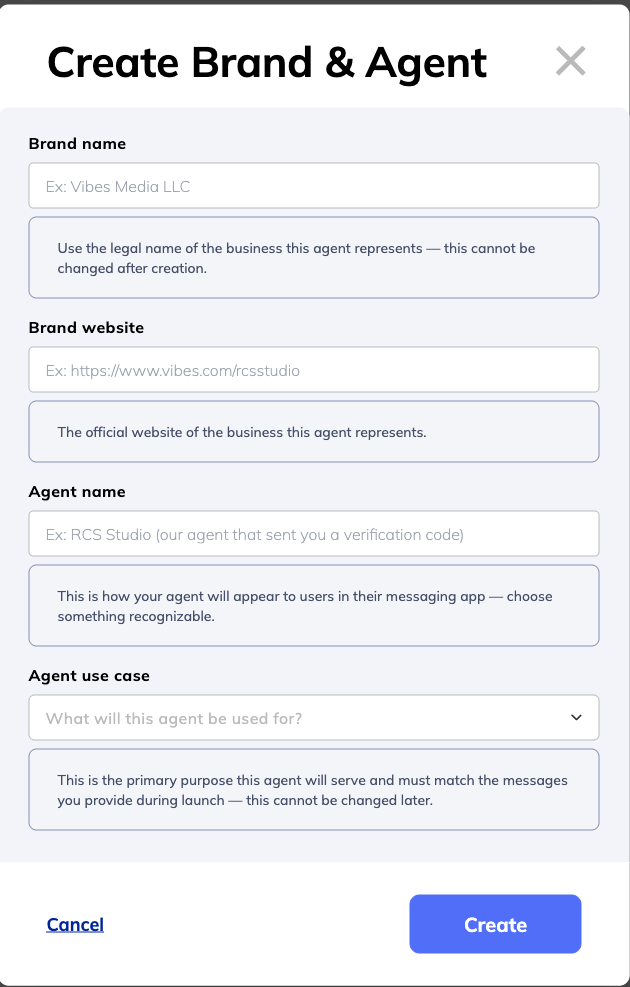
Fields
| Field | What it is | Why it matters |
|---|---|---|
| Brand name | The legal name of the business this agent represents | Used during carrier verification — must match your official business records. Cannot be changed after creation. |
| Brand website | The official website of the business | Shown to carriers during the verification process. |
| Agent name | The display name shown to users in their messaging app | This is what users see when they receive a message from you — choose something recognizable. For example, if you're setting up a rewards program for XYZ Brand, name the agent XYZ Brand Rewards. Cannot be changed after creation. |
| Agent use case | The primary purpose this agent will serve | Must match the messages you send and the use case you declare during launch. Cannot be changed after creation. |
Agent use cases
| Use case | Description | Examples |
|---|---|---|
| Multi-use | The agent sends a combination of message types — both promotional and transactional. | A retail agent that sends order confirmations and also promotes upcoming sales. |
| Promotional | The agent sends marketing or advertising messages intended to drive engagement or purchases. | Sale announcements, loyalty program offers, new product launches. |
| Transactional | The agent sends messages triggered by a user action or account event. | Order confirmations, shipping updates, appointment reminders, account alerts. |
| OTP | The agent sends one-time passcodes for authentication or verification. | Login verification codes, two-factor authentication, phone number confirmation. |
The use case you select must align with the messages you configure and the description you provide when submitting your launch request. Carriers verify these match.
Add an agent to an existing brand
Choose Agent Only if your brand is already set up and you need an additional agent under it.
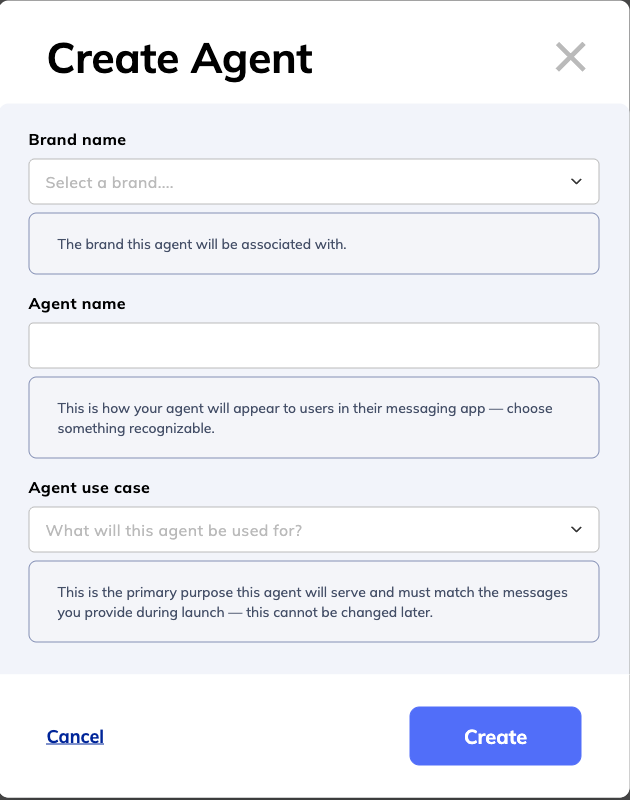
Fields
| Field | What it is | Why it matters |
|---|---|---|
| Brand name | The existing brand this agent will belong to | Ties the agent to your verified business entity. Each agent can only belong to one brand. |
| Agent name | The display name shown to users in their messaging app | Choose something specific and recognizable. Cannot be changed after creation. |
| Agent use case | The primary purpose this agent will serve | See Agent use cases above. Cannot be changed after creation. |
Test mode
New agents are placed in test mode by default. In test mode, messages can only be sent to registered test devices — they cannot reach arbitrary phone numbers. This lets you build and validate your flows before submitting for launch.
See also
- Agent and brand statuses — What each status means after creation
Updated 4 months ago
Did this page help you?