
Update your agent
The Settings tab is where you configure how your agent appears to users and how it behaves. Settings are split into two sections: Agent details (branding and contact information) and Agent interactions (behaviors and routing).
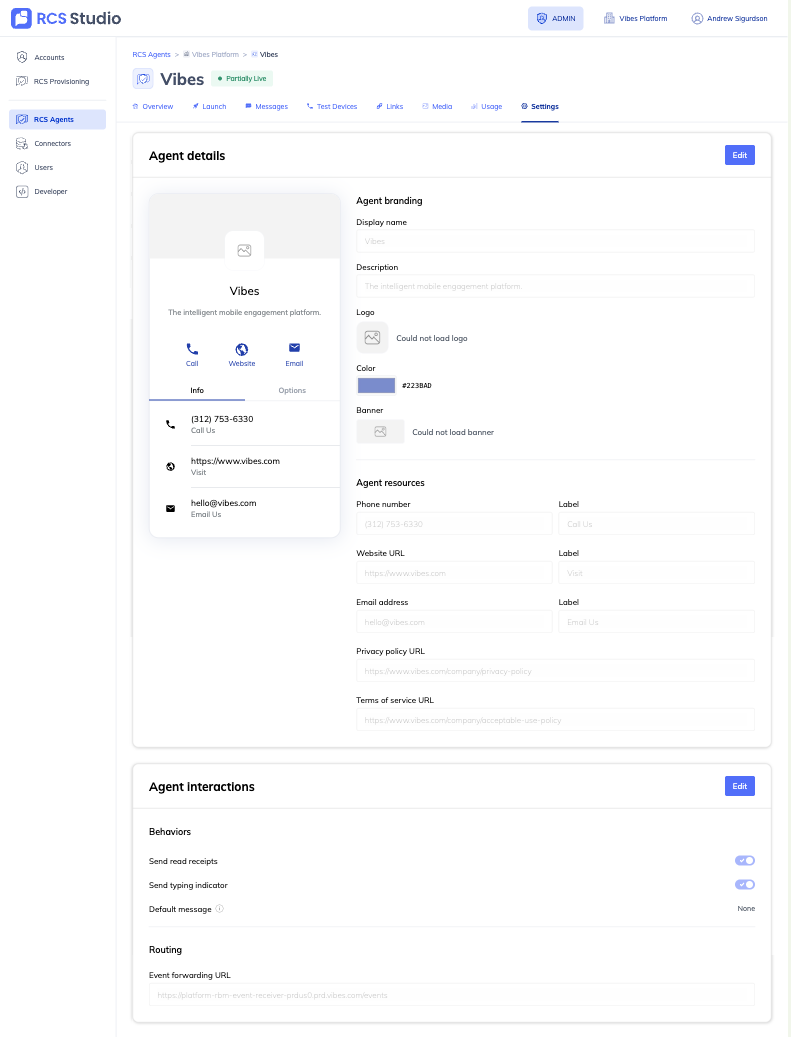
Click Edit on a section to make changes. Changes to each section are saved independently — click Save within a section after editing. Unsaved changes are discarded if you navigate away.
Agent details
The Agent details section controls how your agent appears when users view its contact card in their messaging app. As you fill in fields, the preview on the left updates to show how the information will look on a device.
Agent branding
| Field | Required | Description | Validation |
|---|---|---|---|
| Display name | Yes | The name shown to users in their messaging app contact card. This is set at creation and is how users will recognize your agent. | Cannot be blank. |
| Description | Yes | A short, purpose-based description of what this agent does — shown beneath the display name on the contact card. Write what the agent does, not a marketing tagline. For example: "Order updates and shipping notifications" rather than "Your trusted retail partner." Required by U.S. carriers. | Cannot be blank. |
| Logo | No | Your agent's profile image. Displayed as a circular image on the contact card and alongside messages in the user's inbox. | PNG or JPG. Dimensions: 224×224 px. Max file size: 50 KB. |
| Color | Yes | The primary brand color used in the contact card header. Choose a color that represents your brand and meets contrast requirements. | Hex color code (e.g., #838FB6). Must meet a 2:1 contrast ratio. |
| Banner | No | A wide banner image shown at the top of the contact card when the user opens the agent. Good for brand reinforcement — use your brand's visual identity. | PNG or JPG. Dimensions: 1440×448 px. Max file size: 200 KB. |
Agent resources
Contact information and resource links shown on the agent's contact card. These appear as tappable buttons (Call, Website, Email) and in the Info tab of the contact card. All fields are optional, but any value you enter must be in the correct format.
| Field | Required | Description | Validation |
|---|---|---|---|
| Phone number | No | A phone number users can call directly from the contact card. Displayed as a Call button. | Must include country code (e.g., +12125551234). |
| Phone number label | No | The text shown on the Call button. If left blank, defaults to the phone number itself. For example: "Call Us" or "Customer Support". | Free text. |
| Website URL | No | A link to your website shown as a Website button on the contact card. | Must be a full URL starting with https://. |
| Website label | No | The text shown on the Website button. For example: "Visit" or "Shop Now". | Free text. |
| Email address | No | An email address users can contact you at, shown as an Email button. | Must be a valid email address. |
| Email label | No | The text shown on the Email button. For example: "Email Us" or "Get Help". | Free text. |
| Privacy policy URL | Yes | A link to your privacy policy. Required for carrier approval — carriers verify this URL is accessible before approving your agent. | Must be a full URL starting with https://. |
| Terms of service URL | Yes | A link to your terms of service. Required for carrier approval. | Must be a full URL starting with https://. |
Agent interactions
The Agent interactions section controls how your agent behaves when users send messages.
Behaviors
| Setting | Type | Description |
|---|---|---|
| Send read receipts | Toggle | When enabled, your agent sends a read receipt back to the user when their message is received. This can be reassuring for users who want confirmation their message was seen. Disabled by default. |
| Send typing indicator | Toggle | When enabled, a typing indicator (the animated "..." bubble) is shown to the user while your agent is processing a response. Useful for flows that take a moment to evaluate input. Disabled by default. |
| Default message | Dropdown | The message your agent sends when a user's input doesn't match any flow. Use this to handle unexpected input gracefully — for example, a message that says "Sorry, I didn't understand that" with suggestion chips to get back on track. Set to None by default, which means the agent sends no reply for unrecognized input. |
The default message must be published before it can be selected here. Build and publish it in the Messages tab first.
Routing
| Field | Required | Description | Validation |
|---|---|---|---|
| Event forwarding URL | No | A webhook URL that receives incoming messages and events from this agent in real time. Use this to integrate your agent with external systems — for example, forwarding user responses to a CRM or triggering backend logic. | Must be a valid URL. |
See also
- What is a brand and agent? — How brands and agents relate
Updated 4 months ago