
Launch your studio agent
Are you ready to launch your agent? This page will walk you through the steps and required information that will be needed to launch an agent on one or more carriers.
Please note, RCS Studio features are frequently being enhanced so please check this page for changes before submitting a new launch request.
Launch overview
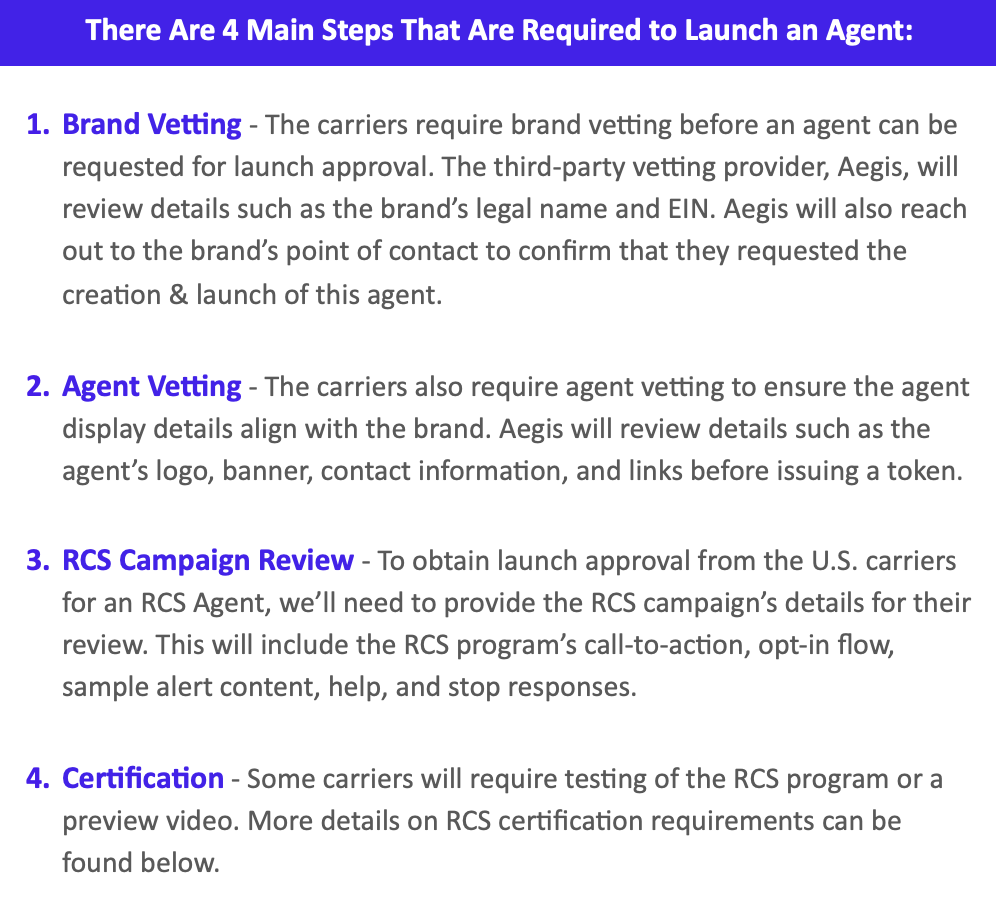
When you're ready, you'll submit your launch through Studio by selecting the "Launch" button on your agent's overview page. A member of the RCS Studio team will follow up with you by email if there are any additional details or changes needed.
Pre-launch checks
Before submitting your launch request, please complete the following checks.
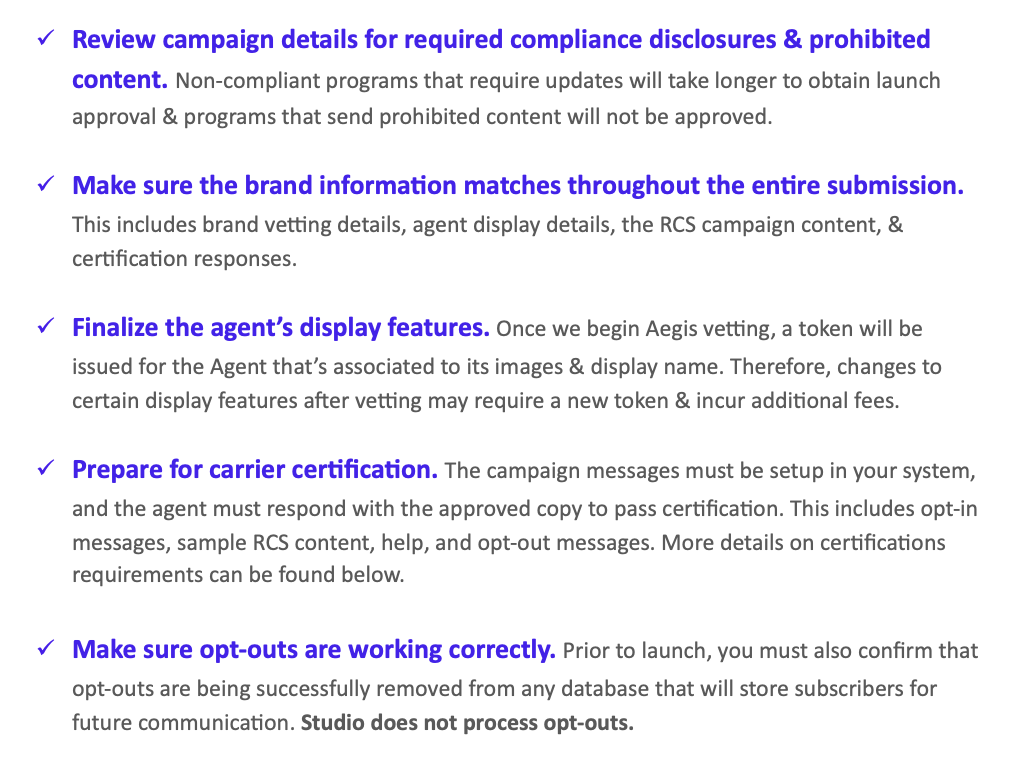
Review for compliance
The agent’s campaign details are required by the carriers prior to launch & will be reviewed for compliance. The CTIA handbook compliance requirements are applied to all RCS programs.
Here's a quick guide to some of the fields you'll be asked to provide in Studio & have required disclosures:
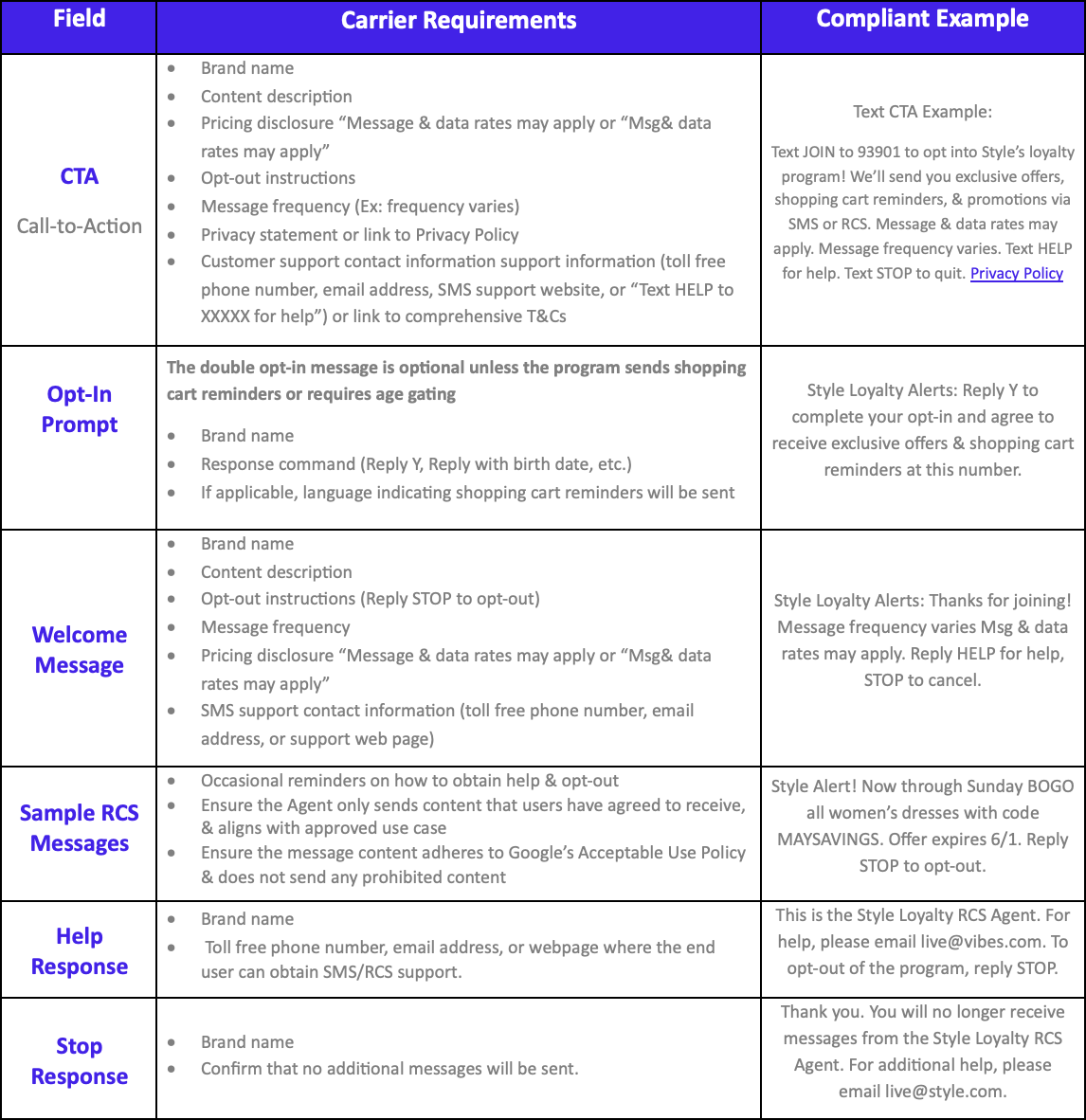
These requirements include both published & unpublished policies that the carriers enforce during campaign review & in post launch audits.
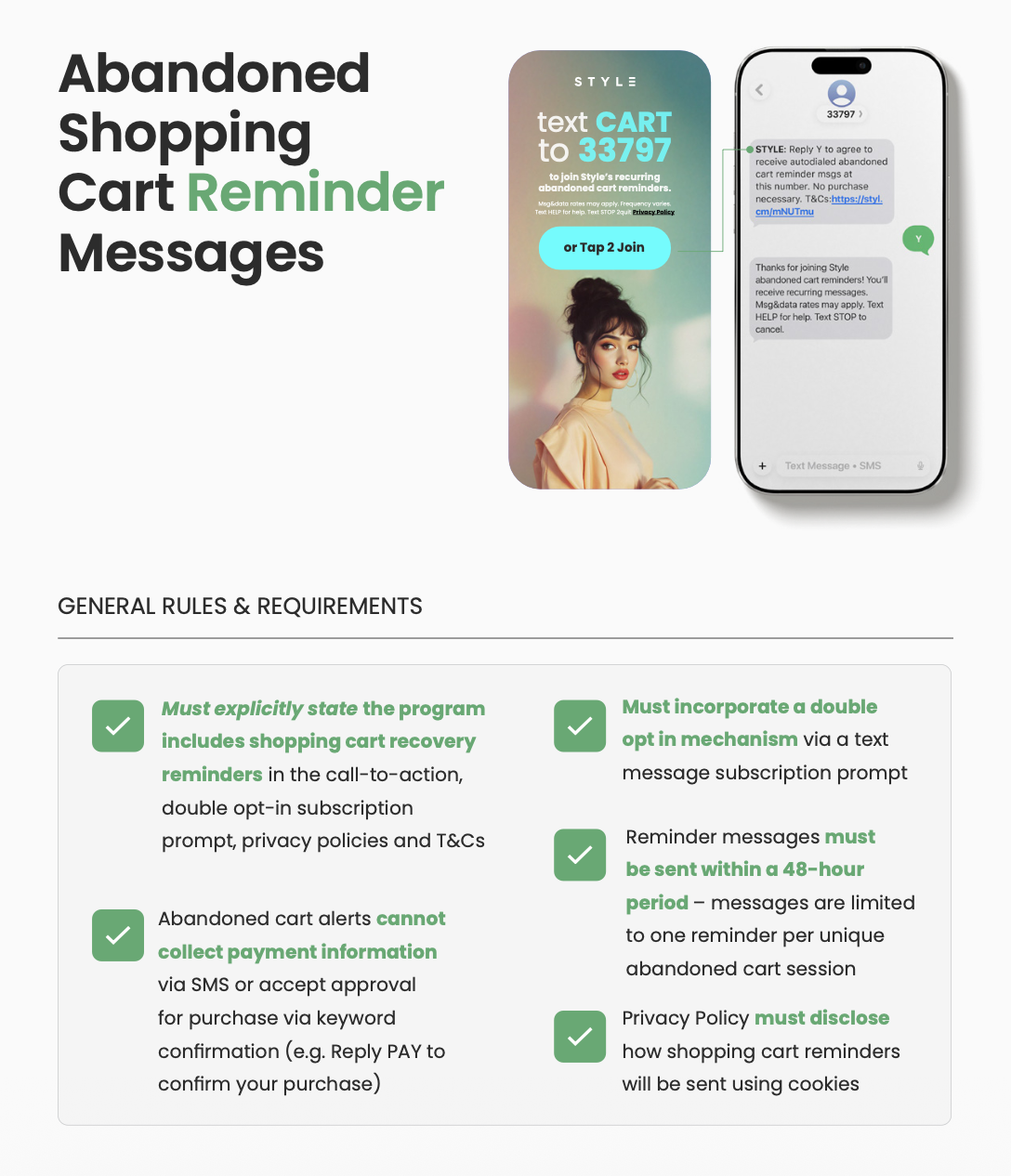
Shopping cart reminder programs have additional requirements:
CTA images
If the campaign will opt users in through a website or mobile webform, you will be required to provide a screen shot or mock up of the call-to-action. This image must include all of the required compliance disclosures. For example:
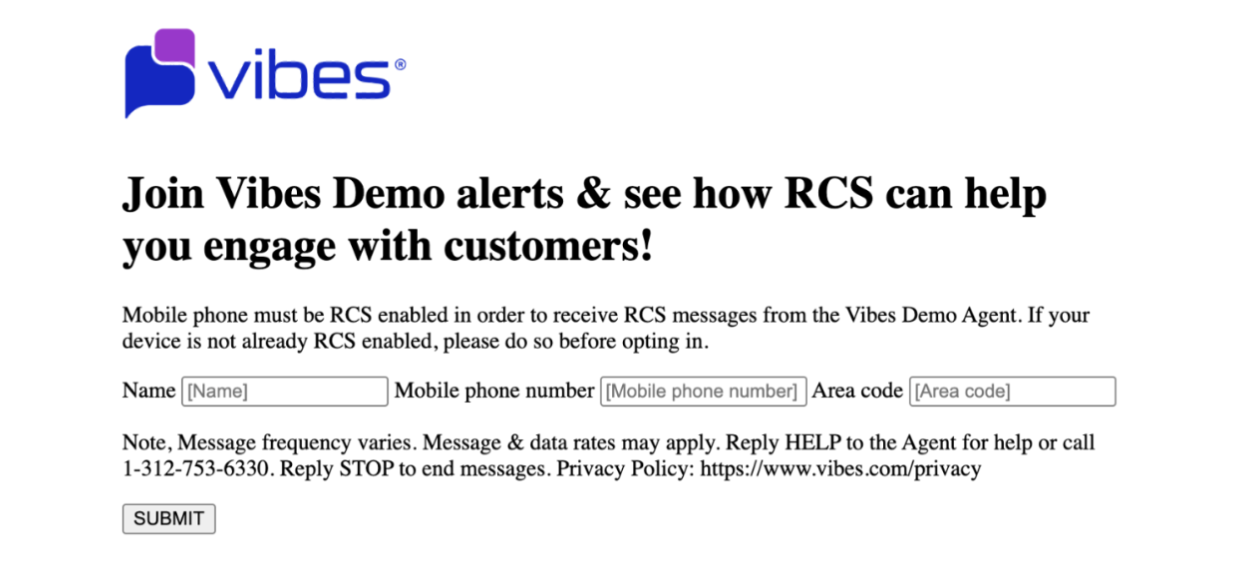
Please keep in mind that consent boxes cannot appear pre-checked in the screen shot, opt-in must be optional and cannot be grouped together with another action or form of consent (Ex: making a purchase, creating an account, or enrolling in email notifications.)
Prepare for certification
Certain carriers have testing or preview requirements for RCS Agents before they will allow them to launch in production on their network. Please see below for RCS certification requirements by carrier.
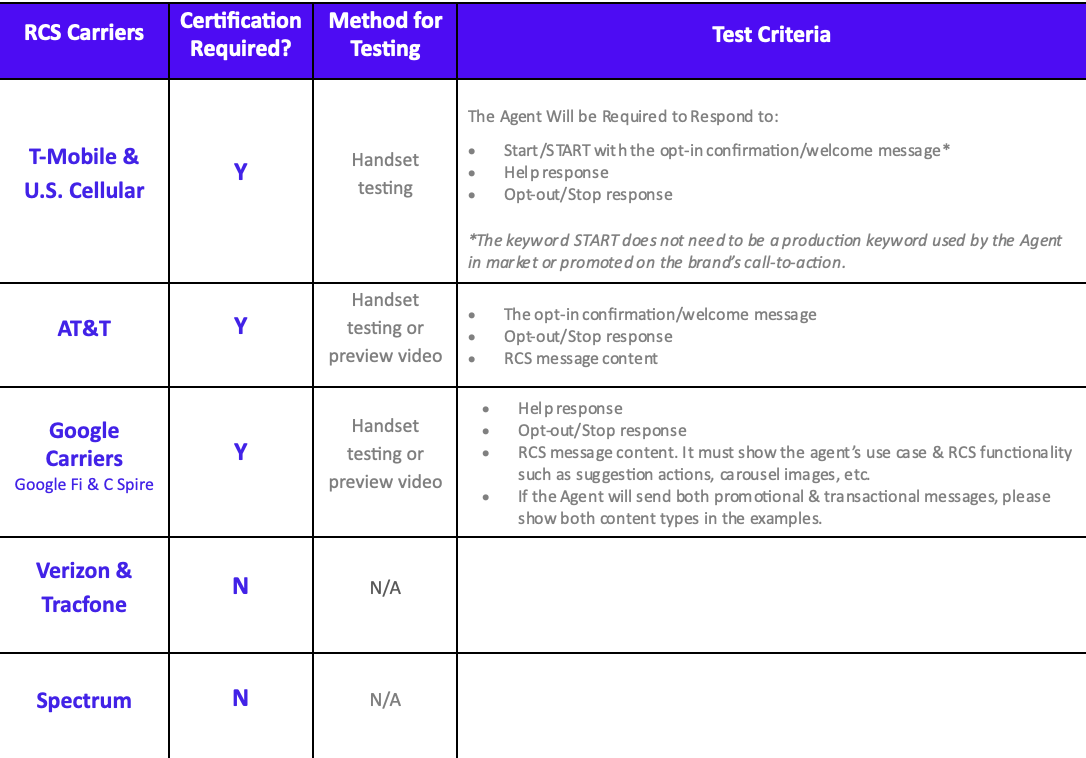
Preview videos must be submitted with a public URL. Click HERE to view an example of a preview video.
For handset testing, please provide a deep-link QR code that starts the opt-in process. The RCS program must match the campaign approved details during certification. Default keywords (help, unsubscribe, quit, cancel, end, and stop) cannot be case sensitive.
Final checks
Please test to ensure that opt-out are being successfully removed from the program's subscription database before requesting launch of the agent for production traffic. Studio does not process opt-outs.
Review the prohibited & restricted content page to ensure this program doesn't violate content policies, such as Google's Acceptable Use Policy. Programs that send unsolicited messages, violate Google's AUP, receive a high number of opt-outs, and/or send prohibited content will be suspended, fined, and/or deactivated.
The compliance recommendations provided here and in Studio are carrier specific, and do not include state or federal legal requirements. Please check with your brand's legal counsel prior to determine if any legal requirements apply to your RCS program. For example, prior express written consent.Vibes cannot provide legal advice and does not review for legal compliance.
Make sure to finalize your agent's display fields prior to requesting the launch of your agent in Studio. Once we submit for vetting, the agent's name, logo and banner images cannot be altered without obtaining a new token.
Lastly, please ensure the brand's point of contact is aware that they will receive 2 verification emails during the launch process that they will need to take action on.
- The first verification email will come from [email protected] and is typically titled “Action Required: Verify Your Email Address”.
- If a Google controlled carrier, such as Google Fi or C Spire, is being requested for launch on the Agent then the brand's point of contact will also receive a verification email from Google. That email is sent by [email protected] and typically titled "Please approve brand use for RCS for Business agent: [Agent ID]"
Updated about 1 hour ago